

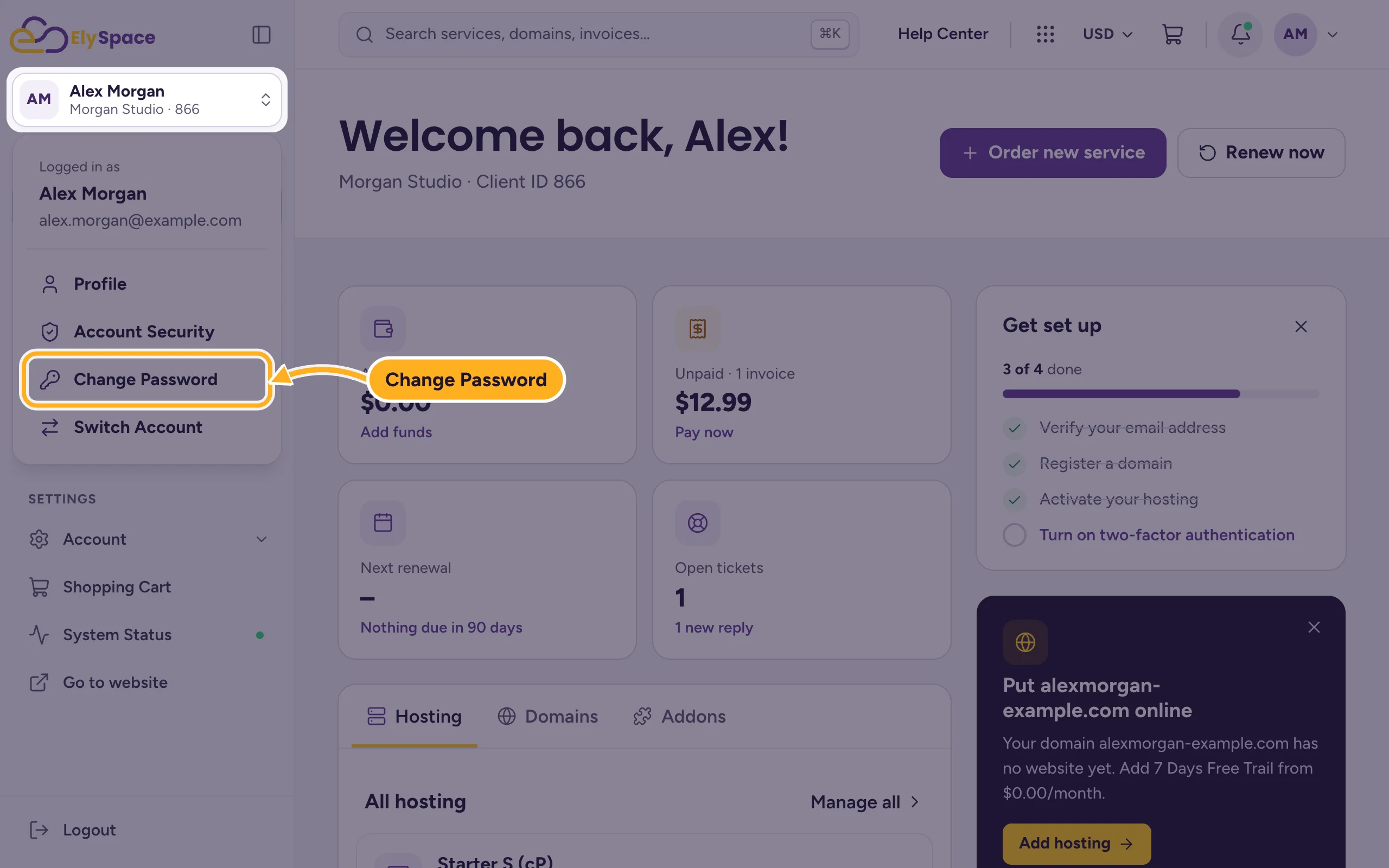
To change your ElySpace client area password, open Change Password from your name in the left menu, enter the old and the new password, and click Save Changes.
Good to know: this is only the password for the client area. Your cPanel account and your mailboxes have their own passwords. See Change or reset your cPanel password and Change an email account password.
Change the password
Log in to the client area. Click your name at the top of the left menu, then Change Password.
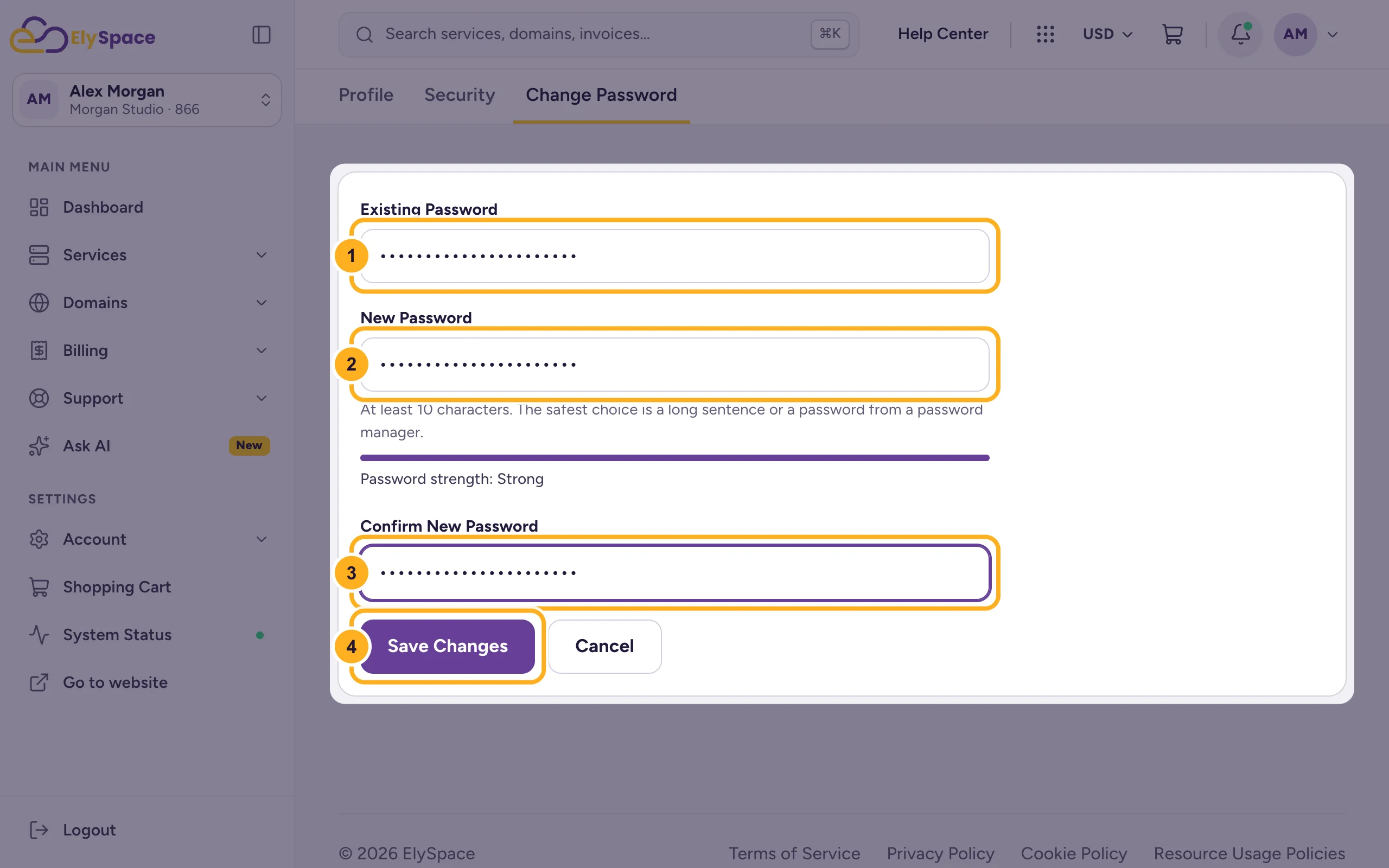
Fill in the form:
- Existing Password: the password you use now.
- New Password: at least 10 characters. A long sentence or a password from a password manager is safest. The bar below shows how strong it is.
- Confirm New Password: the new password again.
- Click Save Changes.
From now on you log in with the new password. If you use a password manager, update the saved entry too.
Tips for a good password
- Use it only for ElySpace, never for another website or your email.
- Longer is better: four or five random words are easier to remember and harder to guess than a short mix of symbols.
- Turn on two-factor authentication as well. Then a stolen password alone isn't enough to get in.
Common problems
"Existing Password" is wrong
Check Caps Lock and the keyboard language. If you really don't know your current password, log out and reset it instead: Reset a forgotten client area password.
The passwords don't match
New Password and Confirm New Password must be exactly the same. Type both again, or paste the same password from your password manager into both fields.
Related articles
- Reset a forgotten client area password
- Turn on two-factor authentication (2FA)
- Security tips for your ElySpace account
- Change or reset your cPanel password
Still stuck? Open a support ticket and we'll help.
