

If WordPress posts and pages show "Not Found" but the homepage works, open Settings > Permalinks and click Save Changes. That rewrites the .htaccess rules.
This often happens after you move or restore a site, or when the .htaccess file was changed. Try the steps in order and check your pages after each one.
1. Save the permalinks again
Log in to WordPress (see Log in to your WordPress dashboard) and go to Settings > Permalinks.
Don't change anything. Scroll down and click Save Changes. WordPress writes its address rules into the
.htaccessfile again.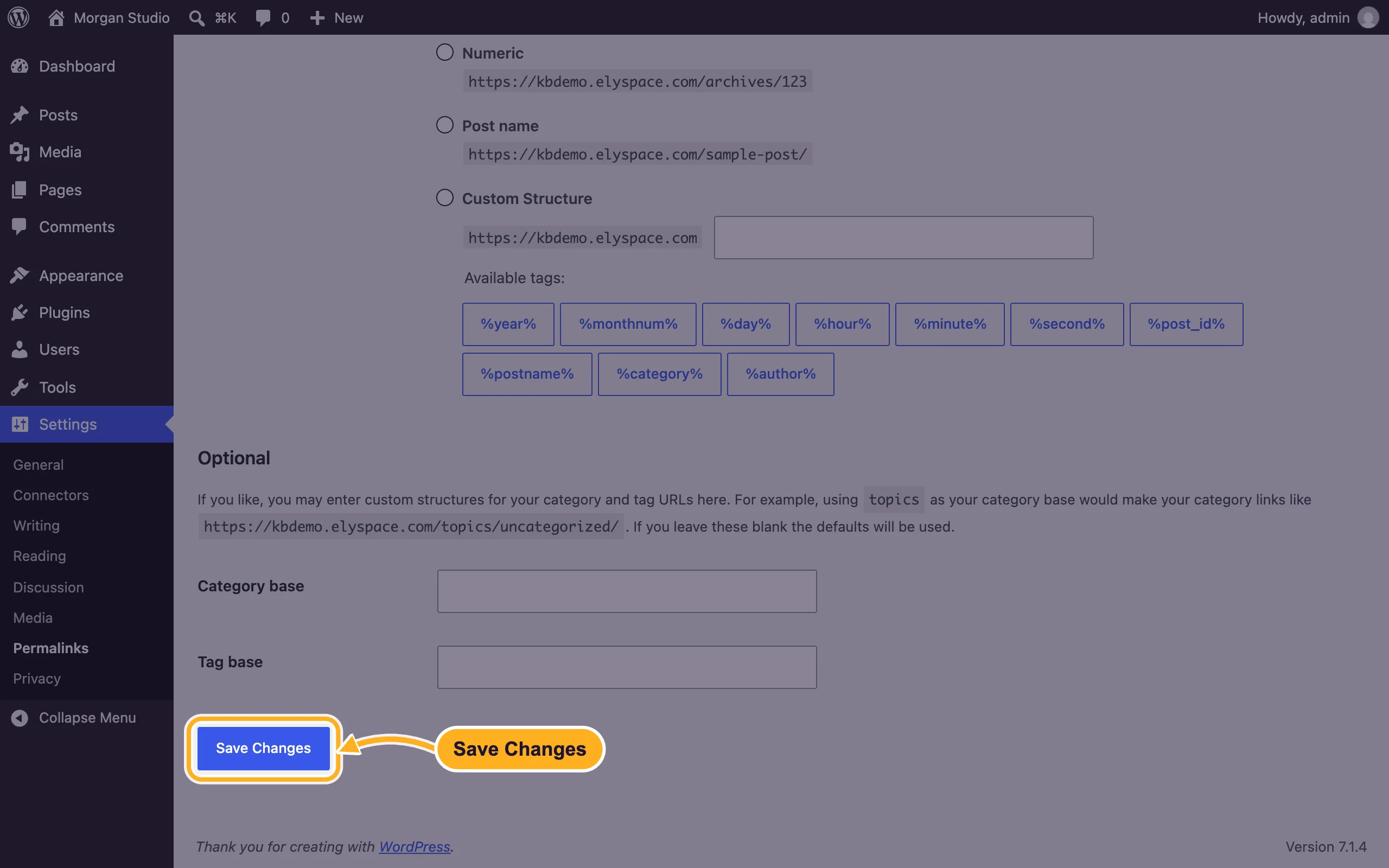
Reload a post or page that showed the error.
While you're on that page: Post name gives short, readable addresses such as yourdomain.com/sample-post/, which visitors and search engines prefer. Plain addresses (yourdomain.com/?p=123) always work, but don't look good.
2. Check the .htaccess file
In cPanel, open File Manager. Click Settings at the top right, tick Show Hidden Files (dotfiles) and click Save.
Open the folder WordPress is installed in (usually
public_html), select.htaccessand click Edit.Look for the lines between
# BEGIN WordPressand# END WordPress. With Post name permalinks they should look like this:# BEGIN WordPress <IfModule mod_rewrite.c> RewriteEngine On RewriteRule .* - [E=HTTP_AUTHORIZATION:%{HTTP:Authorization}] RewriteBase / RewriteRule ^index\.php$ - [L] RewriteCond %{REQUEST_FILENAME} !-f RewriteCond %{REQUEST_FILENAME} !-d RewriteRule . /index.php [L] </IfModule> # END WordPressIf the block is missing or empty, paste it in, keep the other lines in the file (cPanel adds its own PHP settings there) and click Save Changes.
WordPress in a folder, for example yourdomain.com/blog? Then the .htaccess file in that folder needs RewriteBase /blog/ and RewriteRule . /blog/index.php [L].
Make a copy of .htaccess before you edit it (see Manage files: edit, move, zip and set permissions), so you can put the old version back if the site stops working.
Common problems
Every page, including the homepage, shows the error
Then it's not the permalinks. Check that the domain points to the right folder and that WordPress is installed there: in cPanel's WordPress Management the site should appear with your domain.
Links still point to the old domain after a move
Check WordPress Address (URL) and Site Address (URL) in Settings > General. Both should show your current domain.
Only one page shows 404
Open it in Pages or Posts and check that it's published, not a draft or in the trash, and that its address (slug) is the one you're opening.
Related articles
- Fix "There has been a critical error on this website"
- Create custom error pages (404 and others)
- Redirect a domain or page
Still stuck? Open a support ticket and we'll help.
