

Malware in WordPress's index.php can be removed by reinstalling the WordPress core files from cPanel. Your posts, pages, themes and uploads stay as they are.
Infected index.php files often redirect visitors to spam sites, show strange ads, or make a malware scanner report the file. Attackers add code to the file because WordPress runs it on every page view.
1. Make a backup
Back up the site in WordPress Management before you change anything (see Back up and restore a WordPress site). It contains the malware too, so don't restore it later; it's only a safety copy in case a step goes wrong.
2. Check and repair the WordPress files
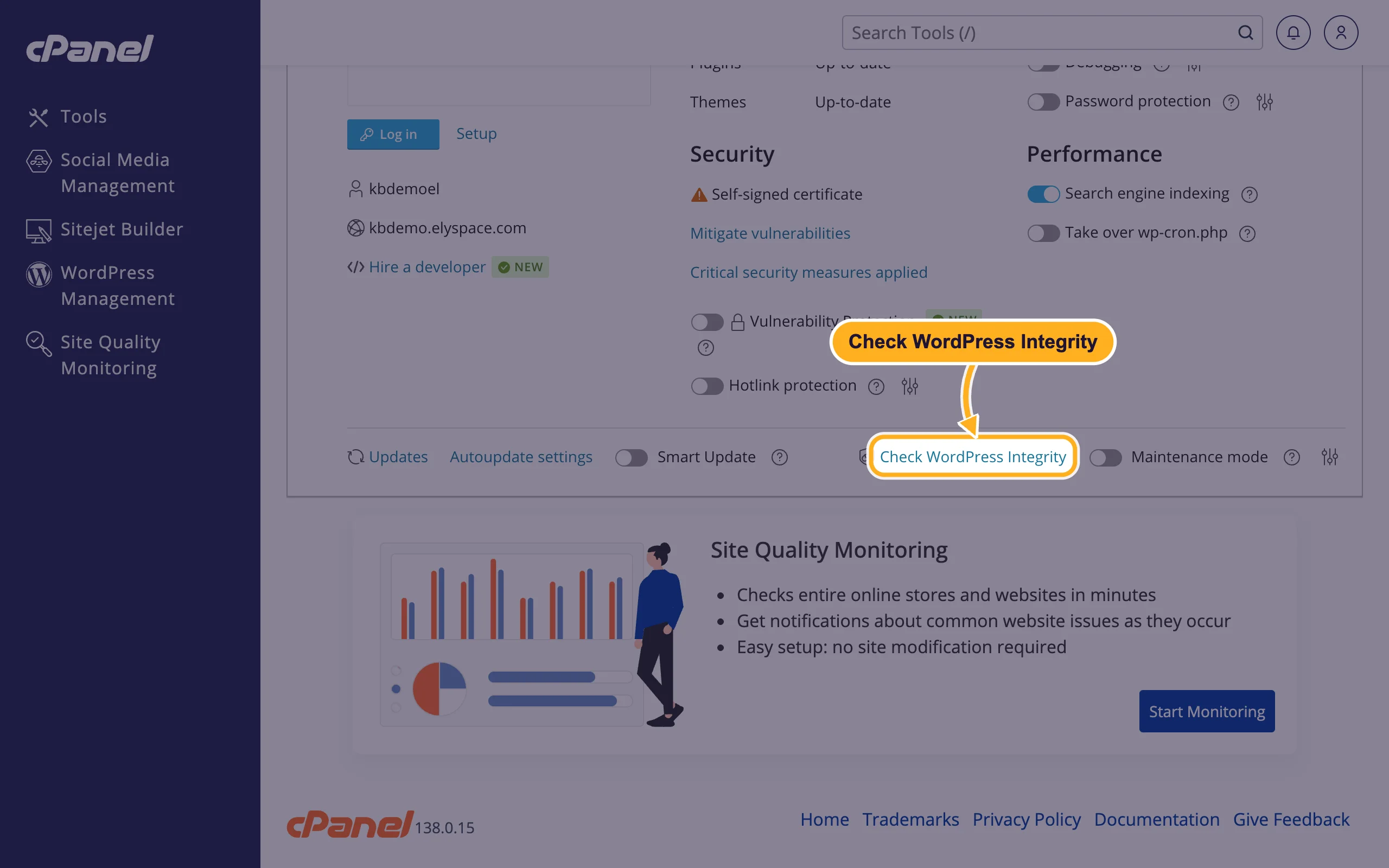
Log in to cPanel and click WordPress Management. At the bottom of your site's card, click Check WordPress Integrity.
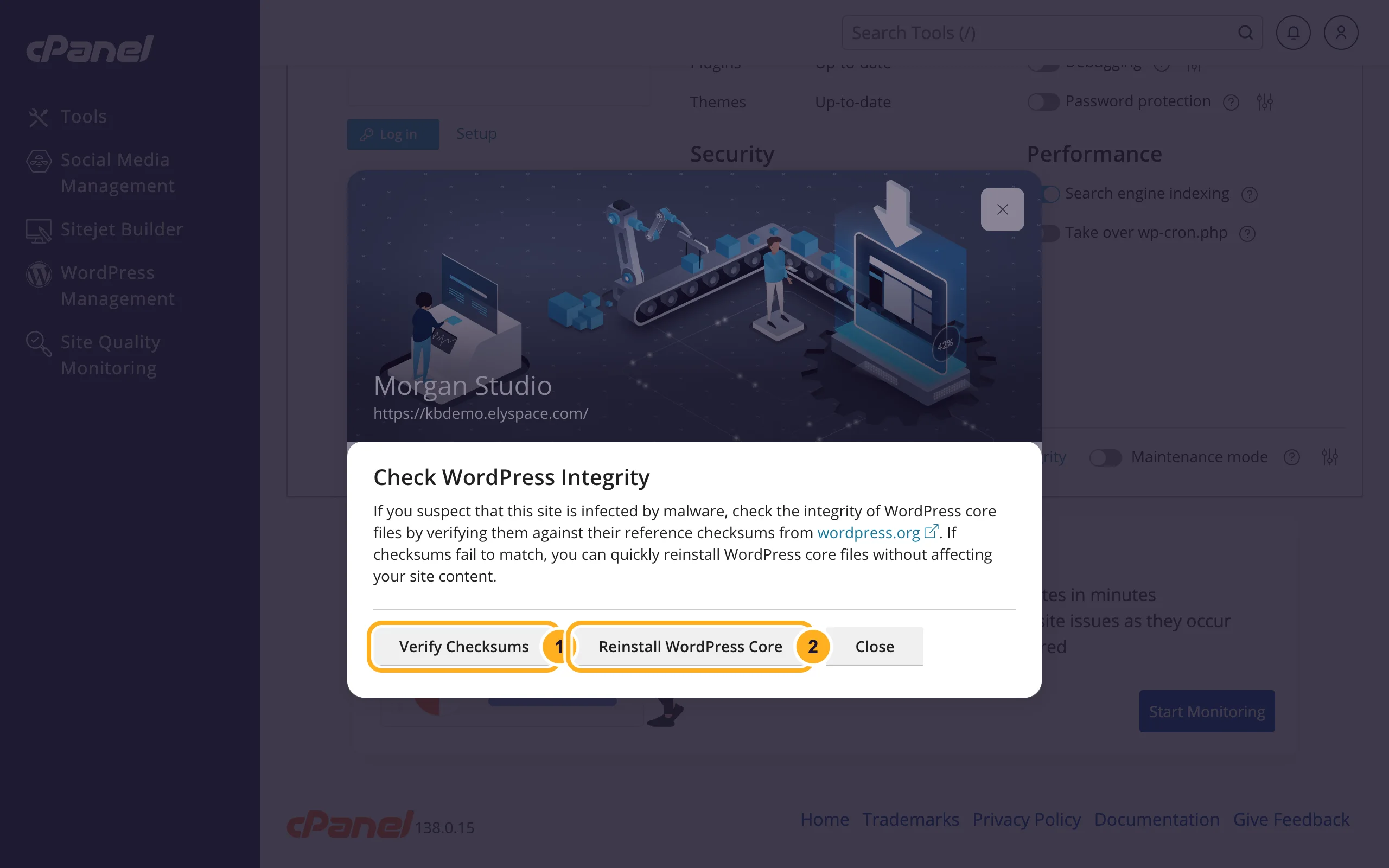
In Check WordPress Integrity:
- Click Verify Checksums. WordPress Management compares your WordPress core files with the originals from wordpress.org and tells you which ones were changed.
- If files don't match, click Reinstall WordPress Core. It replaces WordPress's own files, including the main
index.php, with clean copies of the same version, without affecting your site content.
Reload your site and check that it works and no longer redirects.
Replace index.php by hand
If you prefer to fix only the one file: open File Manager, go to your WordPress folder (usually public_html), select index.php and click Edit. A clean WordPress index.php contains only this:
<?php
/**
 * Front to the WordPress application. This file doesn't do anything, but loads
 * wp-blog-header.php which does and tells WordPress to load the theme.
 *
 * @package WordPress
 */

/**
 * Tells WordPress to load the WordPress theme and output it.
 *
 * @var bool
 */
define( 'WP_USE_THEMES', true );

/** Loads the WordPress Environment and Template */
require __DIR__ . '/wp-blog-header.php';
Replace everything in the file with these lines and click Save Changes. Malicious code is often hidden far to the right of a line or after many empty lines, so don't try to remove it line by line.
3. Look for more infected files
- Open Imunify360 in cPanel and check the Malicious list (see Scan your website for malware with Imunify360).
- In File Manager, sort by Last Modified and look for PHP files changed on days you didn't work on the site, especially in
wp-content/uploads, where PHP files don't belong. - Check the
index.phpfiles of your theme and plugins. Reinstall plugins and themes from their original source instead of editing them. - In WordPress, open Users and delete administrators you don't know.
4. Close the door
- Update WordPress, all plugins and themes, and delete the ones you don't use (see Update WordPress, plugins and themes).
- Change your WordPress, cPanel and database passwords.
- Apply the security measures in WordPress Management (see Secure your WordPress site from cPanel).
Common problems
The malware comes back after a few hours
Something is still re-infecting the site, for example a hidden file, a cron job or an unknown administrator account. Check Cron Jobs in cPanel for entries you didn't create, and go through Your website was hacked: what to do first. Our Website Security and Hack Recovery service can clean the site for you.
Google shows "This site may be hacked"
After cleaning, ask Google to review the site: Remove Google's "This site may be hacked" warning.
Related articles
- Your website was hacked: what to do first
- Scan your website for malware with Imunify360
- Secure your WordPress site from cPanel
Still stuck? Open a ticket in Website Security: Open a support ticket and we'll help.
