

Set date.timezone in cPanel's MultiPHP INI Editor (Editor Mode) to make PHP scripts use your time zone, for example Asia/Kolkata or Europe/London.
Set the timezone
Log in to cPanel and click MultiPHP INI Editor in the Software section.
Click the Editor Mode tab.
date.timezoneisn't in Basic Mode.Add the setting:
- Select the domain in the list (or Home Directory for scripts outside your website folders).
- On a new line at the end, type
date.timezone = "Asia/Kolkata"with your own time zone. Leave the lines that are already there as they are. - Click Save.
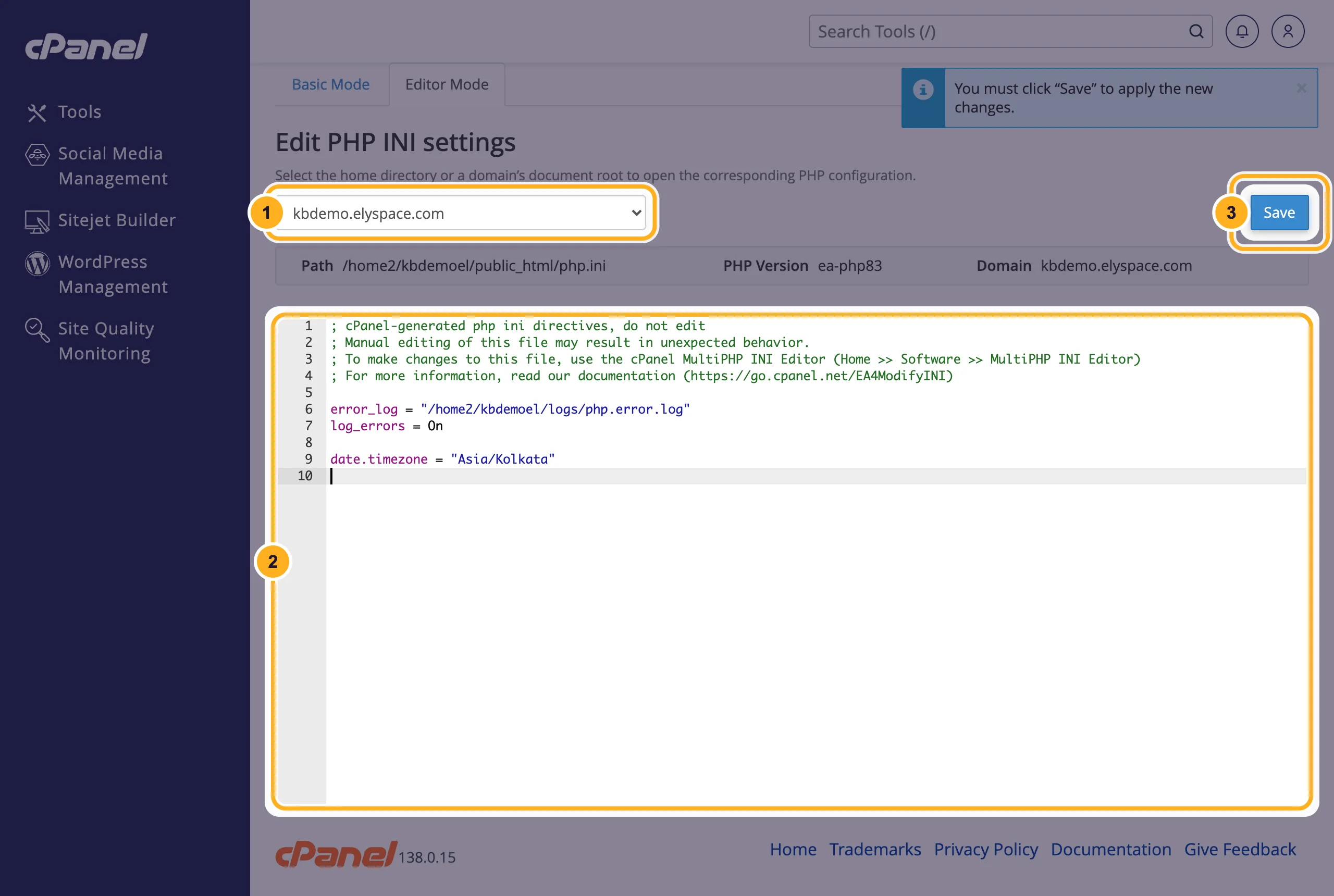
The change applies to new page loads at once. Each domain has its own settings, so repeat the steps for other domains if needed.
Time zone names
Use the official name in the form Region/City. A few common ones:
| Country or region | Value |
|---|---|
| India | Asia/Kolkata |
| United Kingdom | Europe/London |
| United Arab Emirates | Asia/Dubai |
| Saudi Arabia | Asia/Riyadh |
| US East Coast | America/New_York |
| US West Coast | America/Los_Angeles |
| Singapore | Asia/Singapore |
| Coordinated Universal Time | UTC |
The full list is in the PHP manual under "List of Supported Timezones" (php.net/timezones). Names like IST or GMT+5:30 don't work.
Common problems
WordPress still shows the wrong time
WordPress has its own setting. In the WordPress dashboard go to Settings > General and choose your city under Timezone. Leave PHP's timezone as it is for WordPress.
Nothing changes
Check that you saved the setting for the domain the script runs on, and that the line has no typo. Scripts can also set their own time zone in their code or settings, which overrides this value.
Cron jobs still run at the old time
This setting changes the time zone inside PHP only. Cron jobs follow the server's clock, see Set up a cron job.
Related articles
Still stuck? Open a support ticket and we'll help.
