

Show visitors a "scheduled maintenance" page while you work on your site: switch on Maintenance mode on your site's card in cPanel's WordPress Management.
Switch maintenance mode on or off
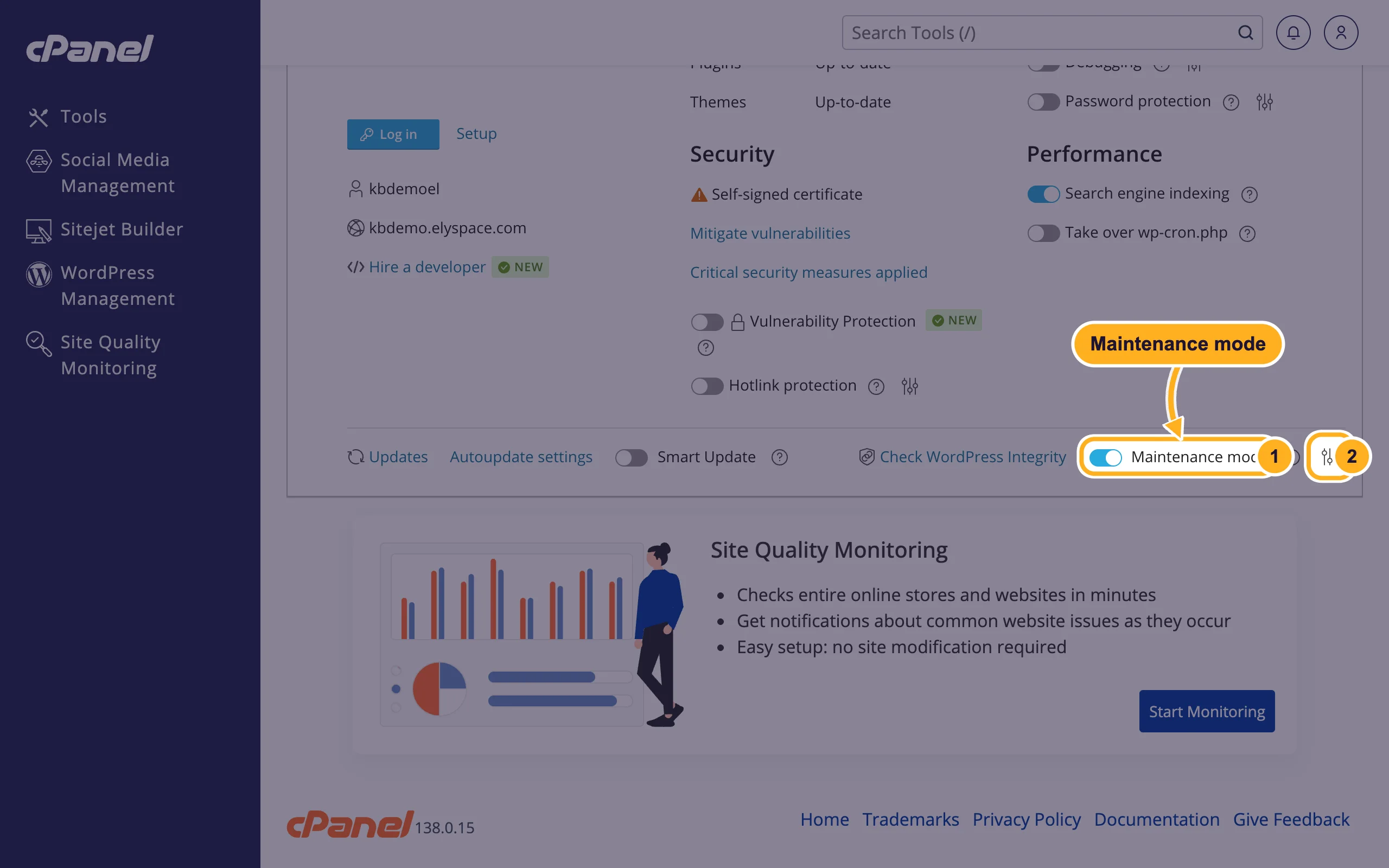
Log in to cPanel, click WordPress Management and open your site's card.
At the bottom of the card:
- Click the Maintenance mode switch. When it's blue, maintenance mode is on.
- The settings icon next to it opens the text and look of the maintenance page (see below).
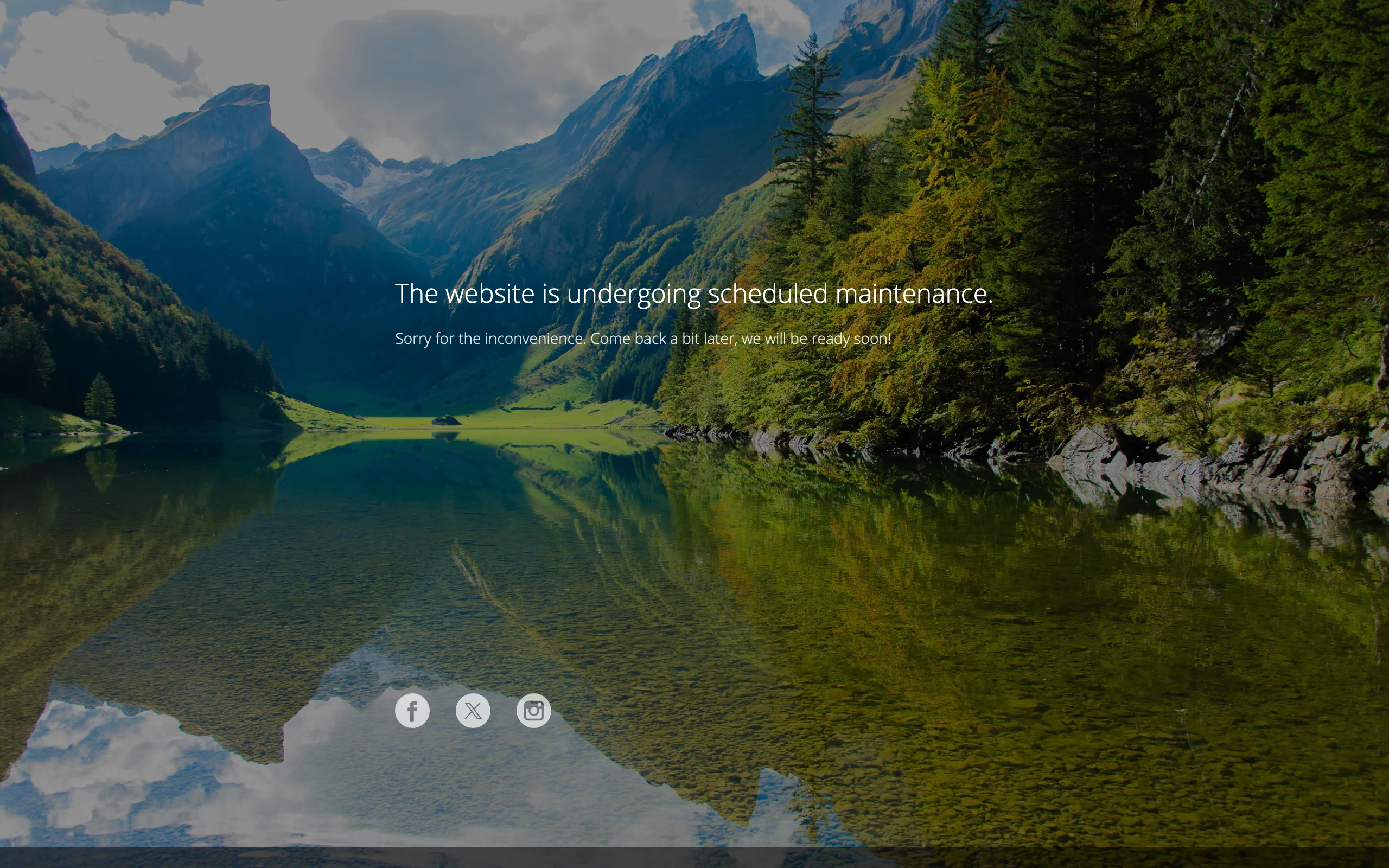
Visitors now see the maintenance page instead of your site. Open your site in a private browser window to check what they see.
When you're done, click the switch again to bring the site back.
Change the text and options
Click the settings icon next to Maintenance mode.
Choose your settings:
- Restrict access to WordPress admin dashboard: when on, nobody can log in to WordPress while maintenance mode is on, not even you. Leave it off if you want to keep working in the dashboard.
- Screen Text: change the Browser page title and the two text blocks, for example "We're updating our shop. Back at 3 pm." Below them you can add a Countdown timer and links to your social network pages.
- Click Preview to see the page.
- Click Save.
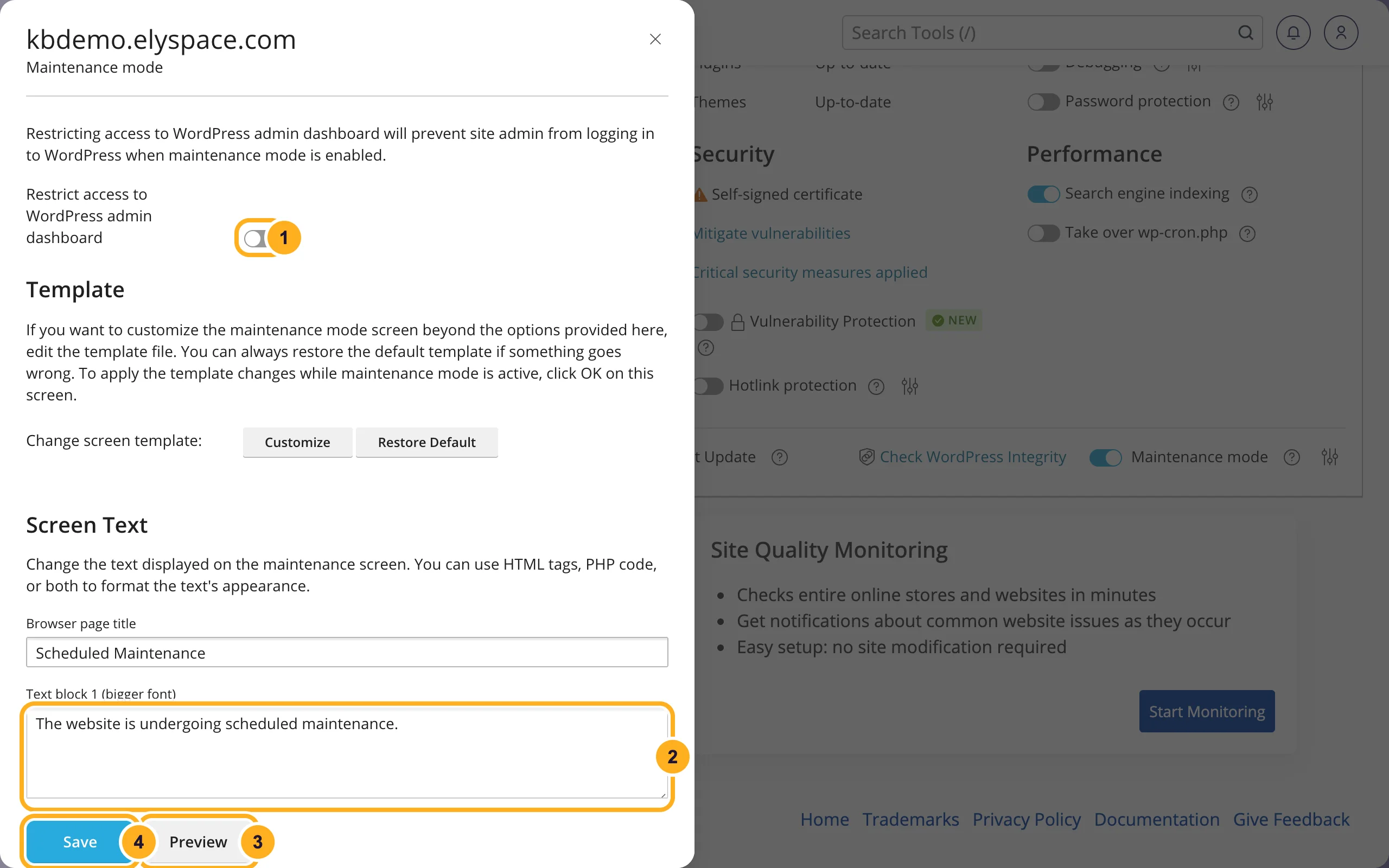
The page shows Facebook, Instagram and X icons with default links. Enter your own pages under Social Network Links, or click Remove next to Default links to hide them. For bigger design changes, Customize lets you edit the page template; Restore Default brings the original back.
Common problems
You can't log in to WordPress any more
Restrict access to WordPress admin dashboard is on. Switch it off in the settings, or switch maintenance mode off, both in cPanel.
Visitors still see the maintenance page after you switched it off
Their browser or a caching plugin may still show the old page. Clear your site's cache (for example with your caching plugin's purge button) and reload without cache: Ctrl+F5 on Windows, Cmd+Shift+R on a Mac.
"Briefly unavailable for scheduled maintenance" and no nice page
That's a different message: WordPress shows it during updates. If it doesn't go away, see the tip in Update WordPress, plugins and themes.
Related articles
- Make a staging copy of your site (clone)
- Update WordPress, plugins and themes
- Install and manage WordPress plugins and themes
Still stuck? Open a support ticket and we'll help.
