

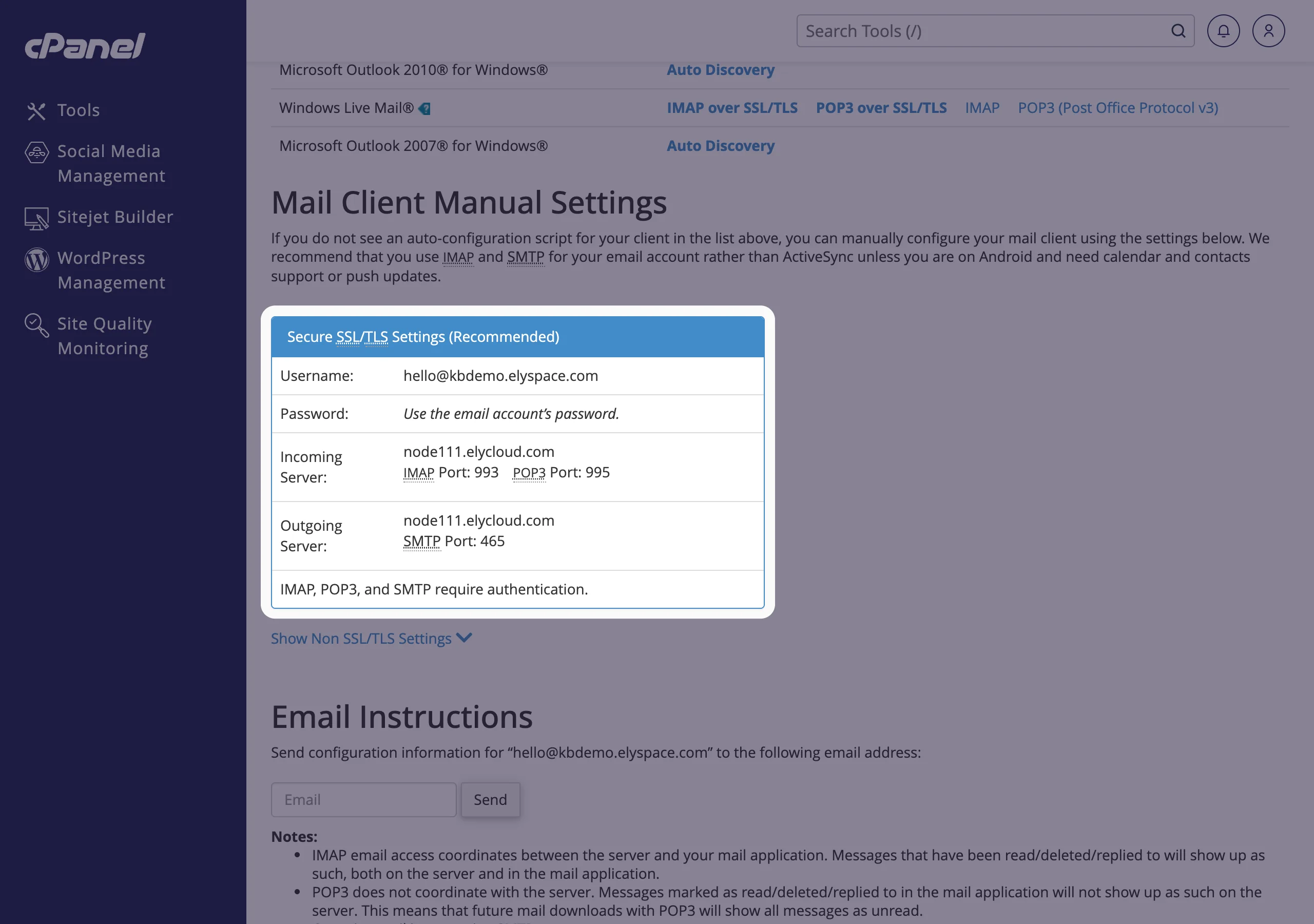
Add your mailbox to the Outlook app on iPhone or Android as an IMAP account, with your server name, port 993 for incoming and 465 for outgoing mail.
Add the account
Open the Outlook app. Tap your profile picture (or the account icon) at the top left, then the gear icon at the bottom left to open the settings.
Under Mail Accounts, tap Add Mail Account, then Add Email Account. On first start, the app asks for an account directly.
Type your full email address and continue.
If Outlook suggests another account type (for example Google or Microsoft), tap Not a … account at the top right, then choose IMAP.
Turn on Advanced Settings and fill in both servers. To set the port, write it after the server name with a colon, as Microsoft describes.
Setting Value Email address your full email address Display name the name people see when you write to them Incoming mail server (IMAP) node111.elycloud.com:993(your server name)Incoming username and password the full email address and the mailbox password Outgoing mail server (SMTP) node111.elycloud.com:465Outgoing username and password the full email address and the mailbox password Tap Sign In (or the check mark). The app connects and shows your inbox.
Common problems
"Couldn't sign in" or "Something went wrong"
Check that you chose IMAP, not POP3 or Exchange, and that both usernames are the full email address. Test the password in webmail.
Receiving works, sending fails
Check the outgoing server: yourservername:465 with the same username and password as incoming. If your mobile network blocks port 465, use :587 instead.
Certificate or security warning
You used mail.yourdomain.com. Use your server name from the Connect Devices page instead; its certificate matches.
I changed the mailbox password
The app keeps asking or stops syncing. In the app settings, tap the account and enter the new password, or remove the account and add it again.
Related articles
- Email server settings and ports (IMAP, POP3, SMTP)
- Set up email on iPhone or iPad
- Set up email on Android
- Set up email in Outlook
Still stuck? Open a support ticket and we'll help.
