

Install the free WP Mail SMTP plugin, choose the Other SMTP mailer and log in to one of your mailboxes: WordPress emails then arrive more reliably.
[email protected] (see Create an email account), and note its password and your server name (see Email server settings and ports). Use a mailbox on your ElySpace hosting: websites on our hosting can't connect to outside mail servers such as Gmail's.Install WP Mail SMTP
Log in to your WordPress dashboard. In the left menu, go to Plugins, Add Plugin.
Type
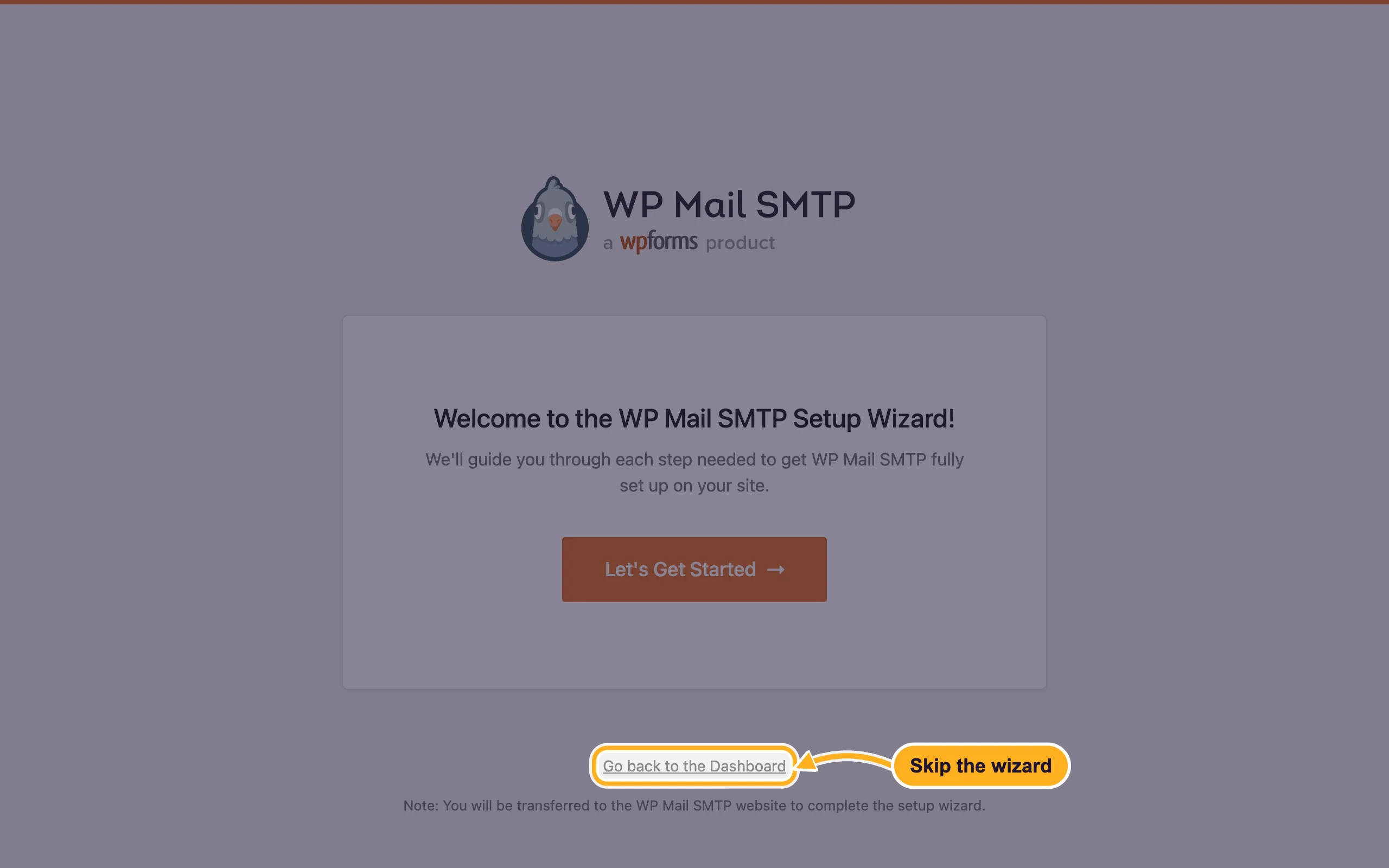
WP Mail SMTPin Search Plugins. The right one is WP Mail SMTP by WPForms. Click Install Now, then Activate.The plugin opens its Setup Wizard. The wizard sends you to the plugin maker's website for some steps, so it's quicker to click Go back to the Dashboard and use the settings page below.
Enter the sender
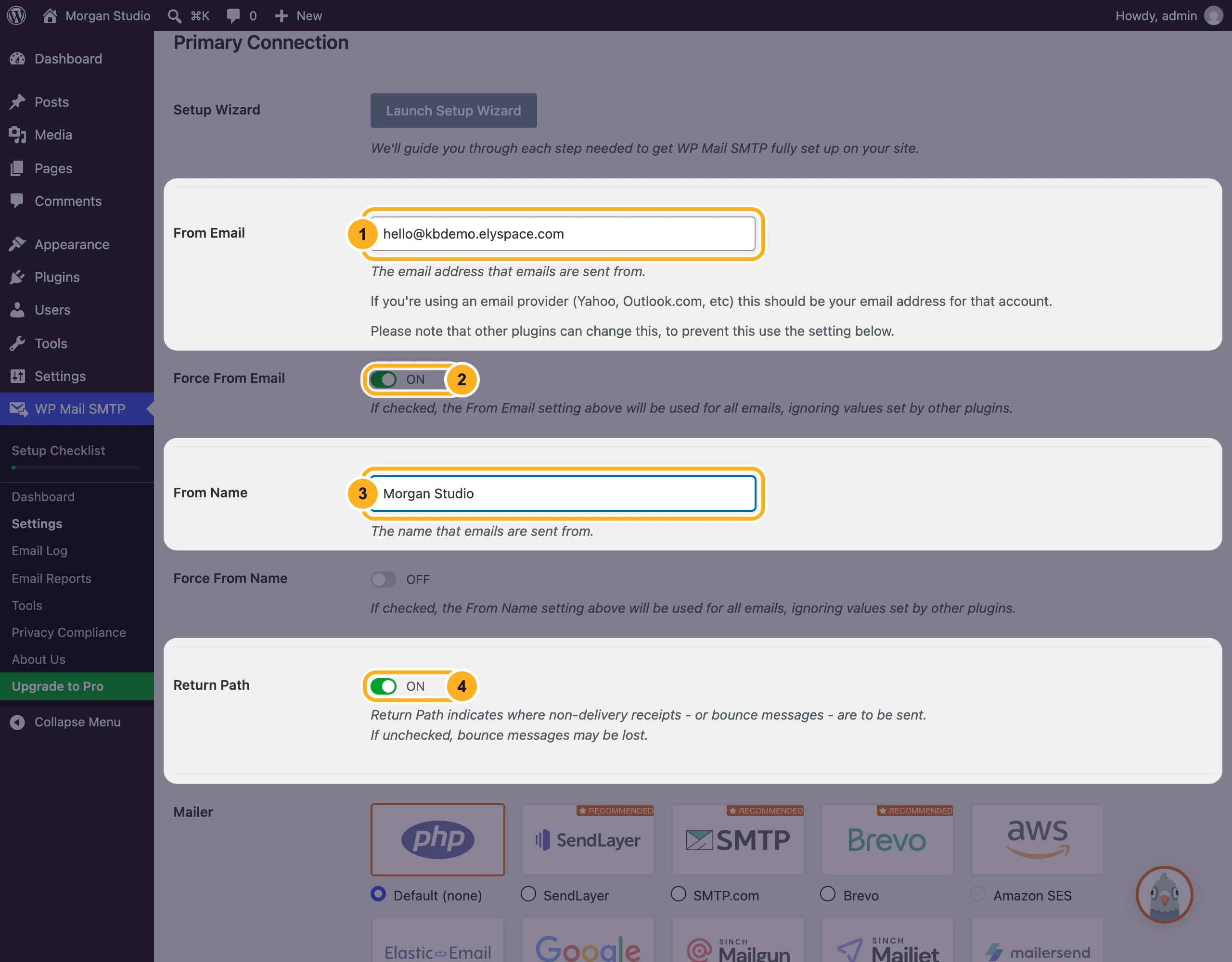
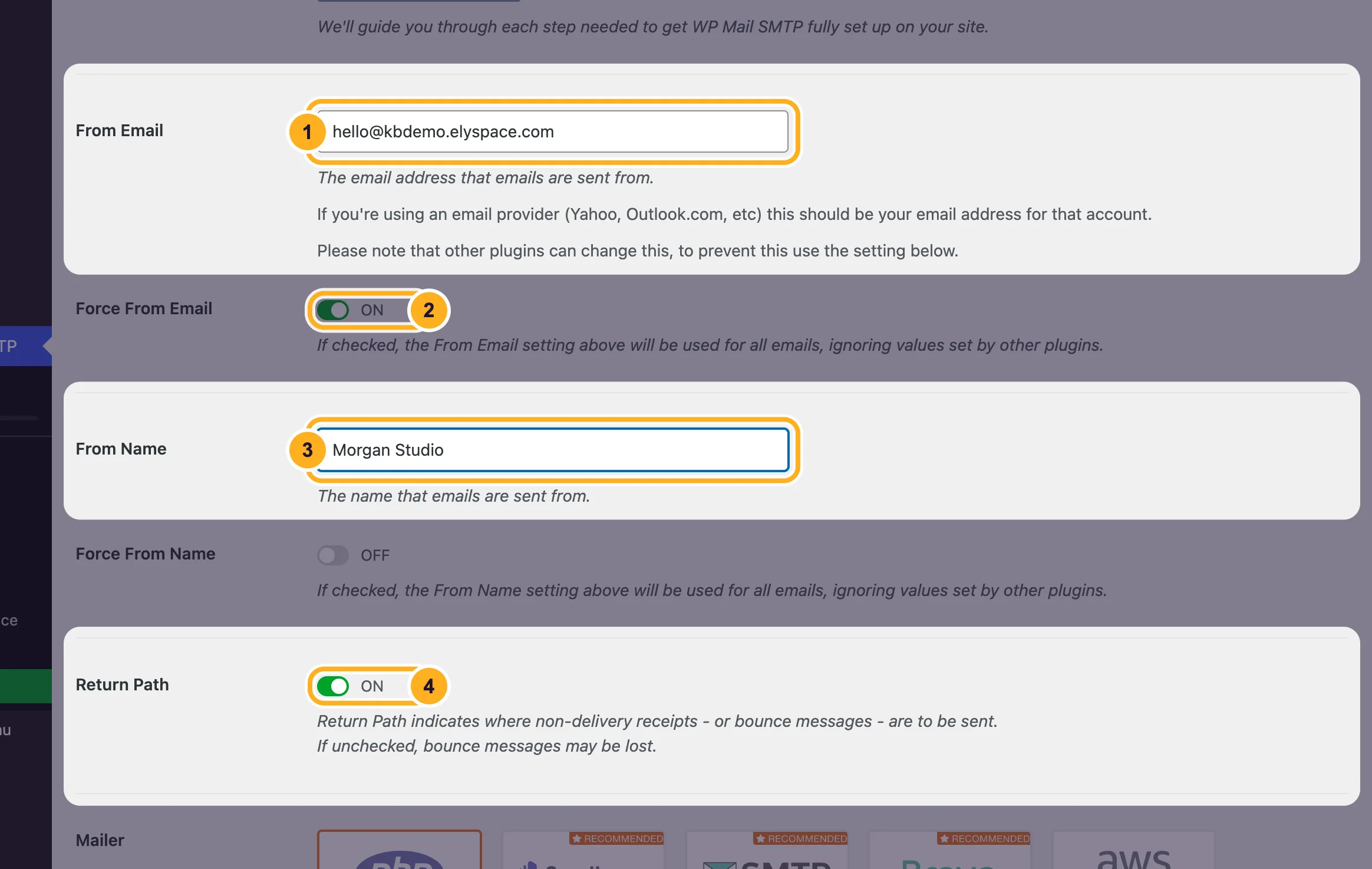
In the left menu, go to WP Mail SMTP, Settings (tab General). Under Primary Connection:
- From Email: the mailbox you created, for example
[email protected]. - Force From Email: leave it on. Then contact form and shop plugins can't replace the sender with an address the server doesn't own.
- From Name: the name people see, for example your business name.
- Return Path: turn it on, so bounce messages come back to this mailbox.
- From Email: the mailbox you created, for example
Connect the mailbox
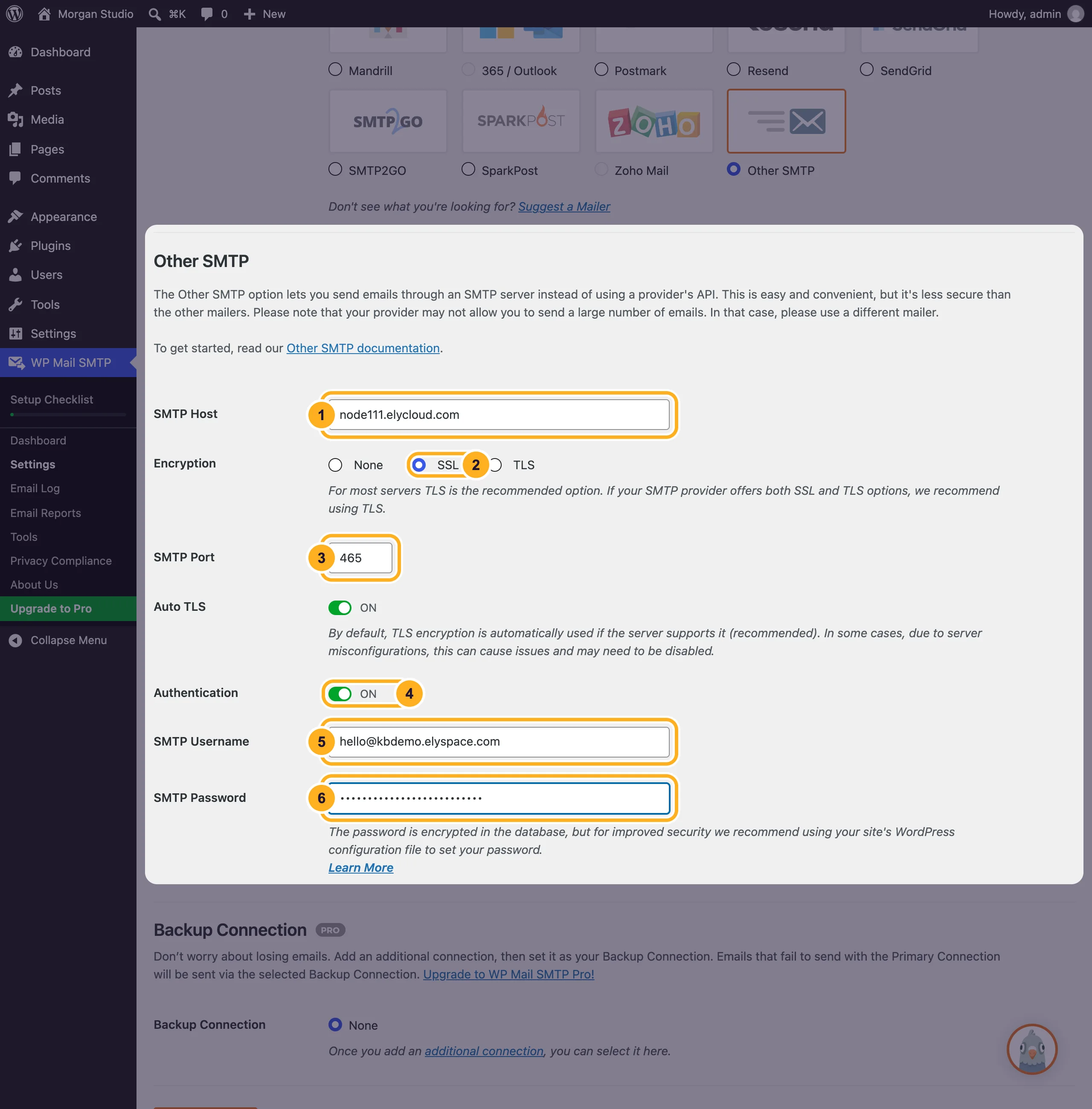
Scroll down to Mailer and click Other SMTP.
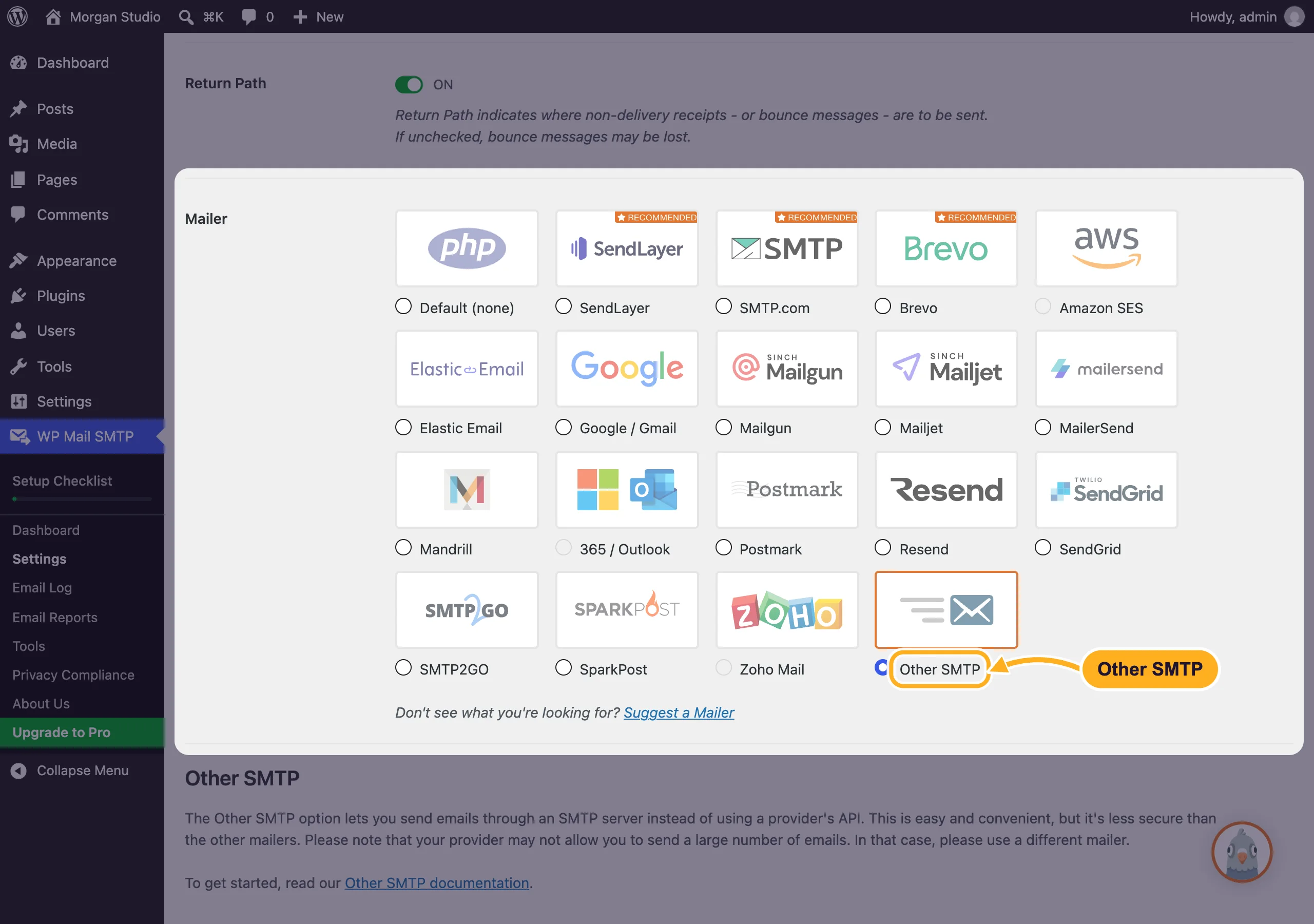
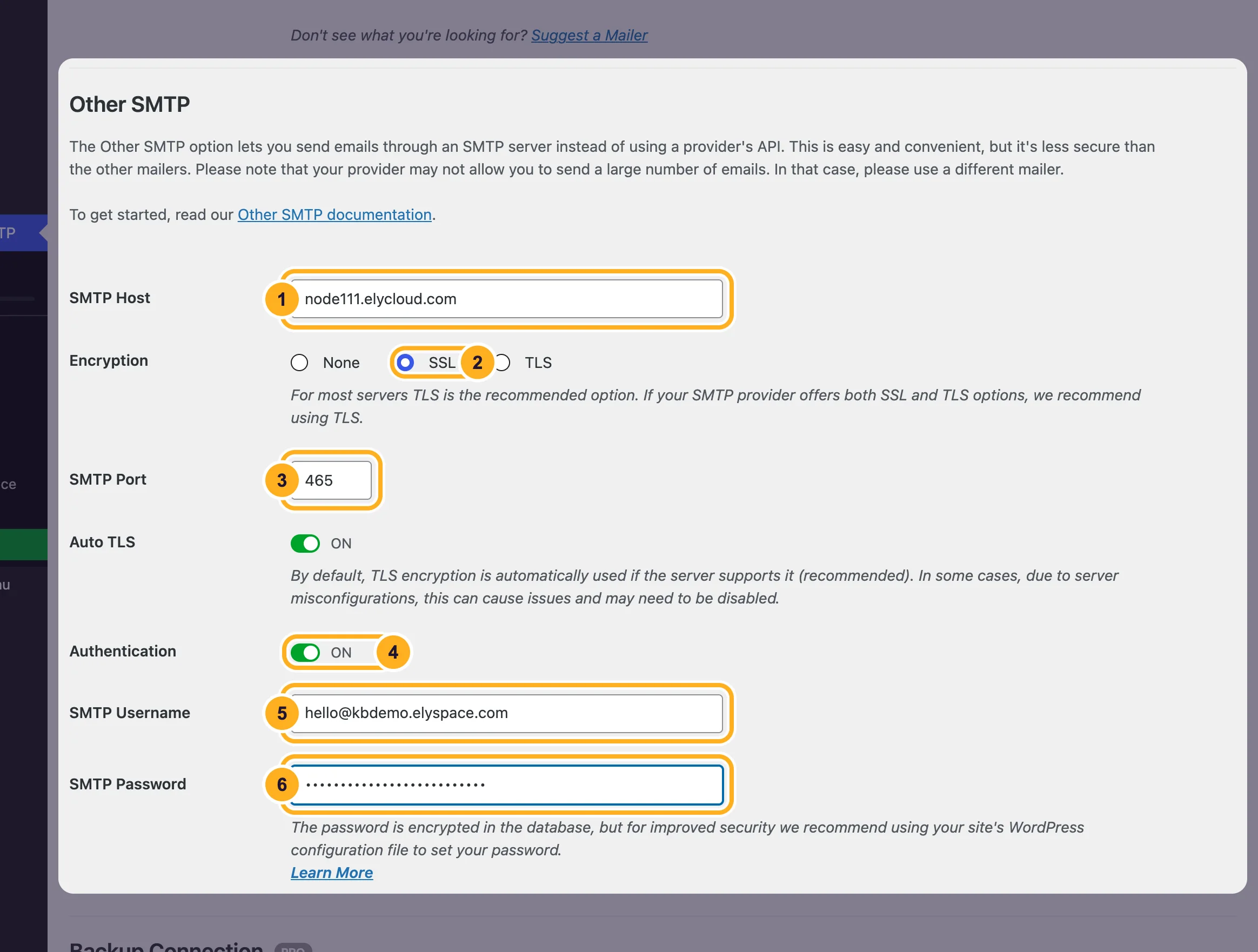
Fill in the Other SMTP fields:
- SMTP Host: your server name, for example
node111.elycloud.com. - Encryption: SSL. (The plugin's hint recommends TLS; with our server both work, as long as the port matches.)
- SMTP Port:
465for SSL. If you chose TLS, use587. Leave Auto TLS on. - Authentication: on.
- SMTP Username: the full email address.
- SMTP Password: the mailbox password.
- SMTP Host: your server name, for example
Scroll down and click Save Settings.
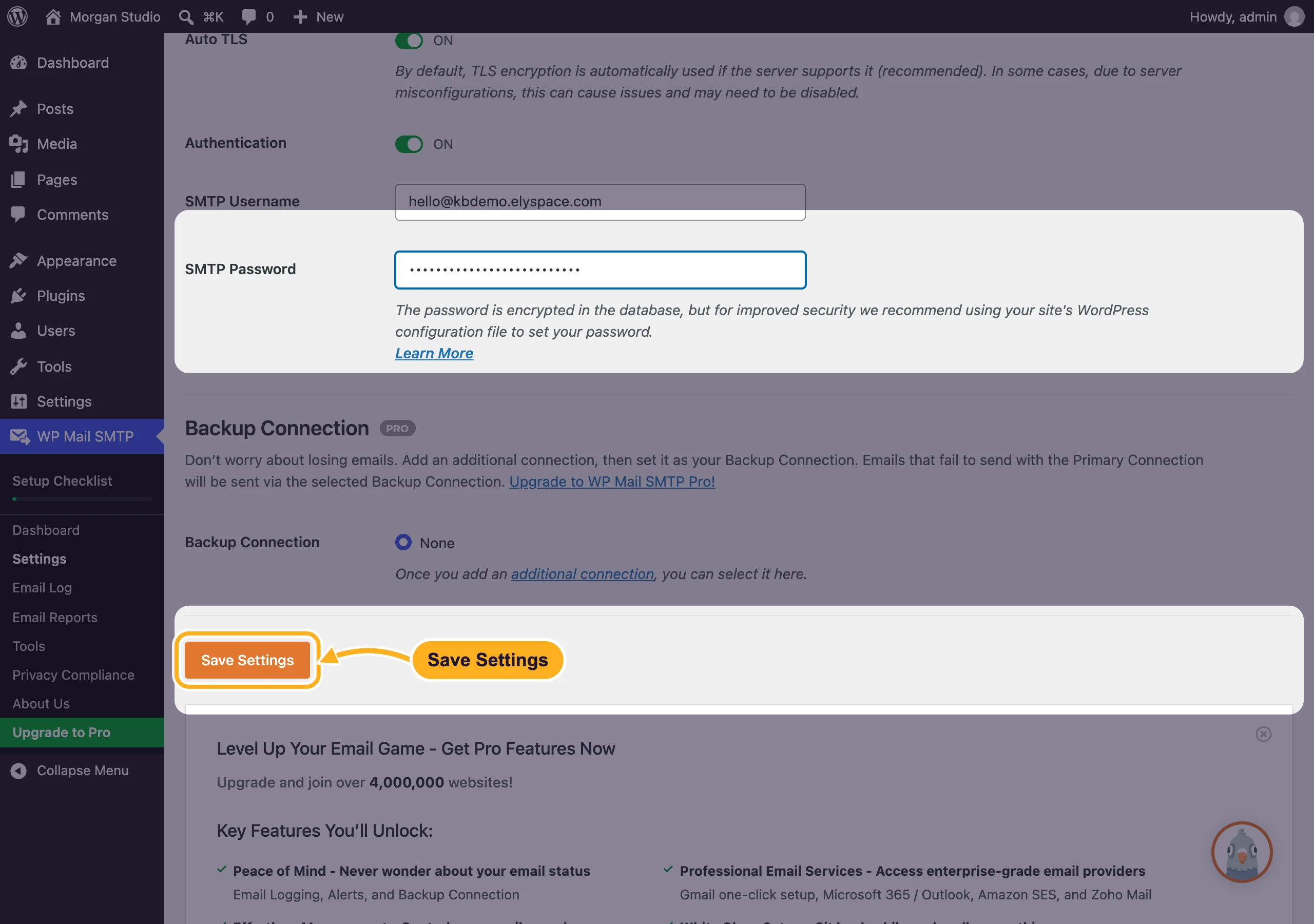
The plugin stores the password encrypted in the WordPress database. Its Learn More link under the password field explains how to keep it in wp-config.php instead, if you prefer that.
Send a test email
Go to WP Mail SMTP, Tools, tab Email Test.
In Send To, enter an address outside your domain that you can read, for example your personal email. Click Send Email.
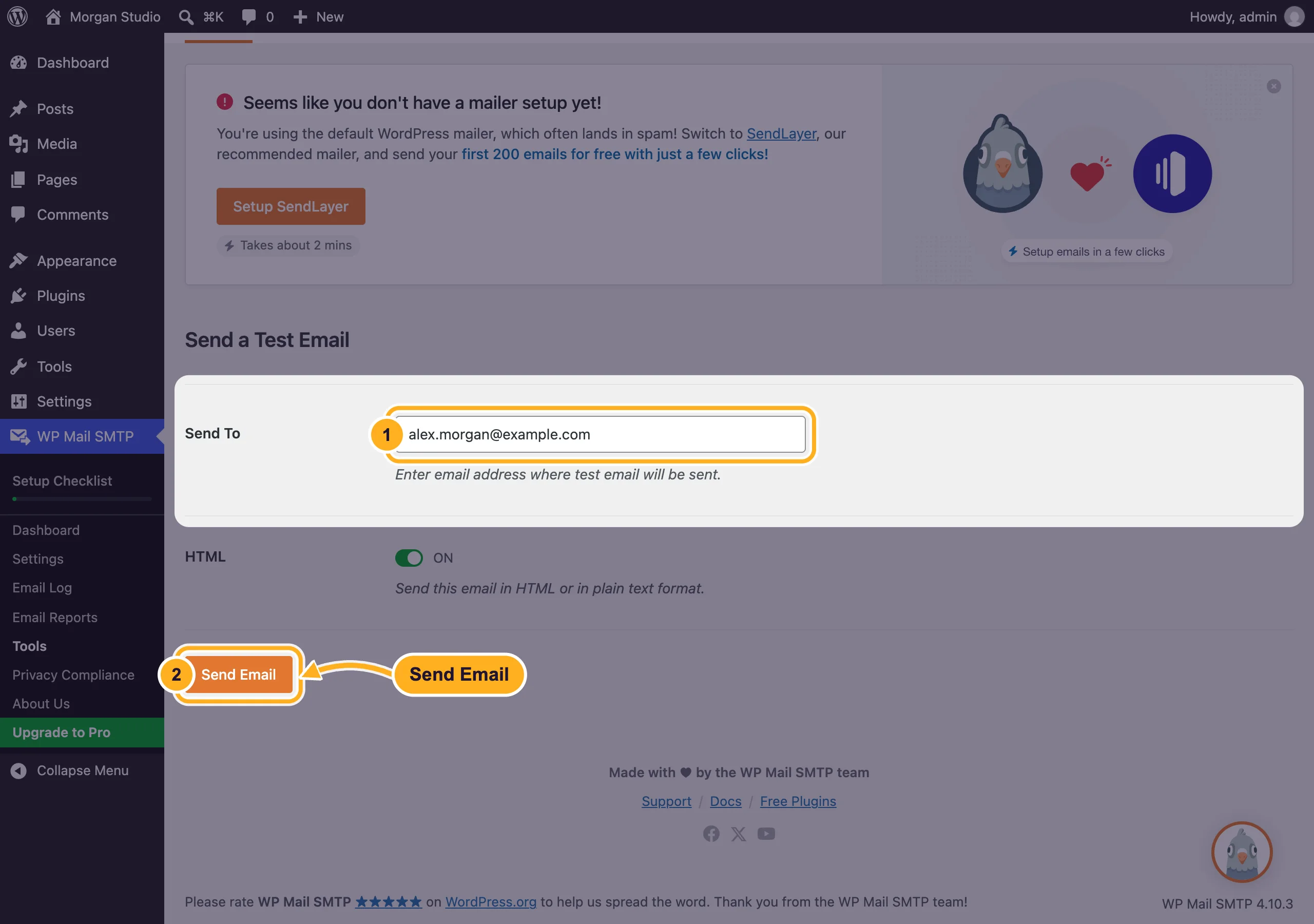
The plugin shows whether the message was handed over successfully. Check that it arrived, and look in the spam folder too.
Common problems
"Could not authenticate" in the test result
The username must be the full email address. Test the password in webmail; if it doesn't work there, set a new one (see Change an email account password) and save it in the plugin again.
The test hangs or reports a connection error
Check that port and encryption match: SSL with 465, or TLS with 587. Use your server name as SMTP Host, not mail.yourdomain.com. Also make sure you didn't enter smtp.gmail.com or another outside server: from our hosting, those connections don't reach them.
Contact form emails still don't arrive
Check the form's notification settings: the To address must be right, and the reply should go to the visitor through Reply-To. See Contact form emails not arriving? Fix it with SMTP.
Emails arrive in spam
Set up SPF, DKIM and DMARC for your domain (see Fix email going to spam: SPF, DKIM and DMARC).
Related articles
- Send email from your website or app with SMTP
- Contact form emails not arriving? Fix it with SMTP
- Email server settings and ports (IMAP, POP3, SMTP)
- Check where an email went (Track Delivery)
Still stuck? Open a support ticket and we'll help.
