

Enter your company name and VAT ID under Account > Account Details and save. Your invoices then show them under Invoiced To.
Add the company name and tax number
Log in to the client area and fill in the fields:
- Go to Account > Account Details.
- Company Name: your company's name as it should appear on invoices.
- VAT ID: your business tax number, for example a VAT number or an Indian GSTIN. The hint below the field says it: for businesses, and it then appears on every invoice.
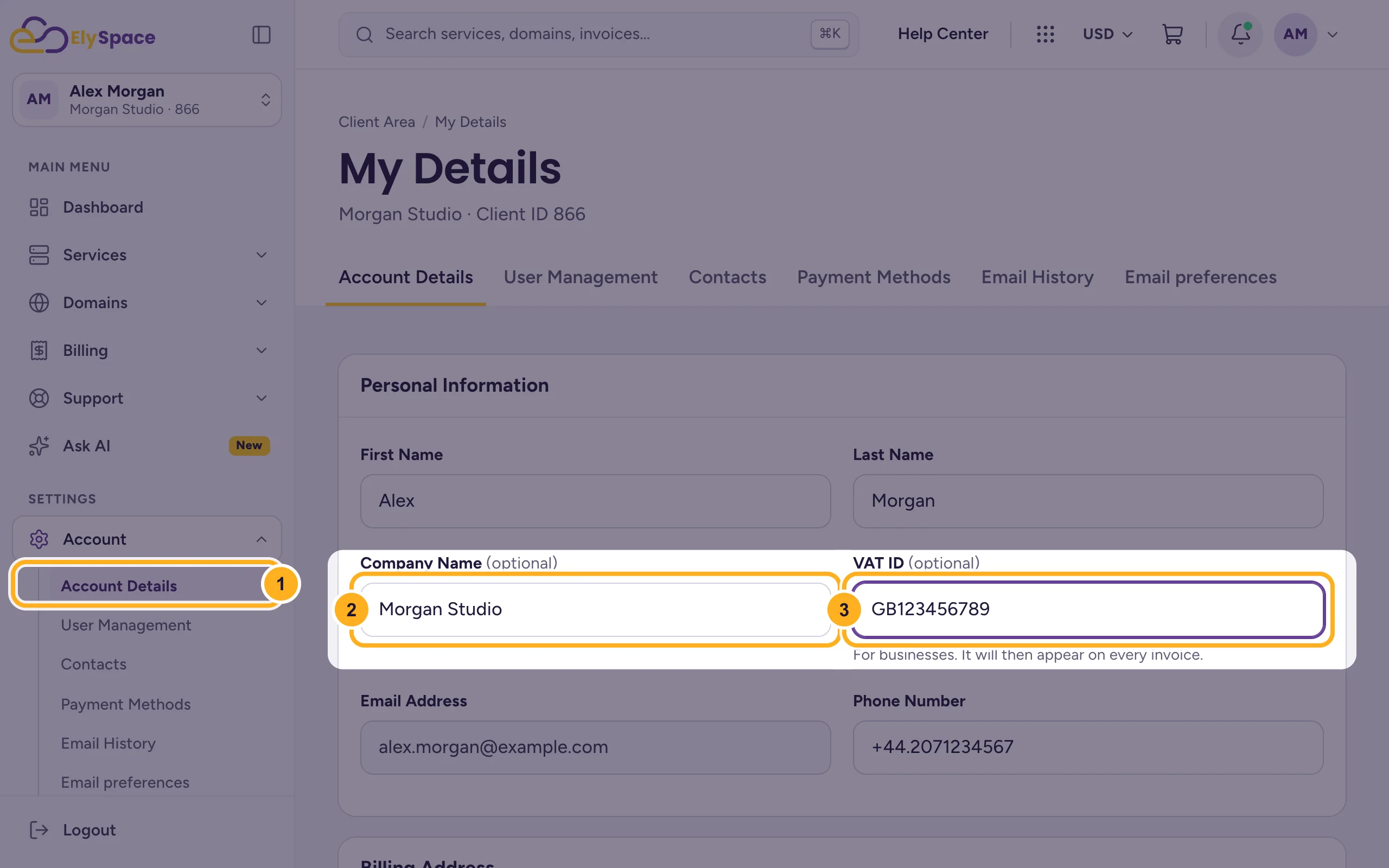
Check that your billing address under Billing Address is correct too, then scroll down and click Save Changes. See Update your profile and billing address.
Both fields are optional. Leave them empty if you're a private customer.
Where it appears on the invoice
Open an invoice under Billing > My Invoices. The box INVOICED TO shows your company name, your name and your billing address, and your VAT ID below them once you've saved one. Our own details and tax number are under ISSUED BY.
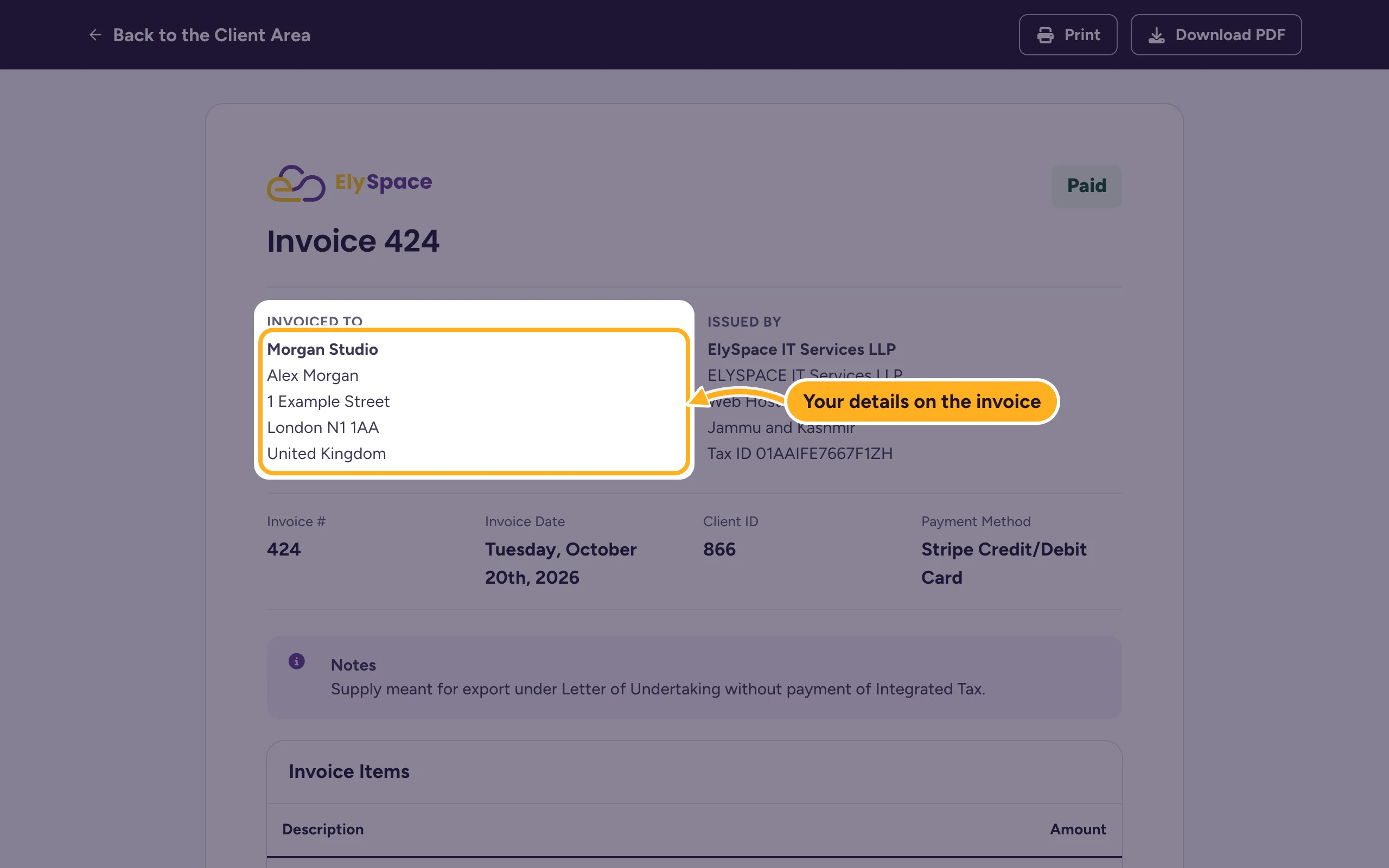
To keep a copy for your records, see Download or print an invoice (PDF).
Common problems
You need the number on an invoice we've already issued
Save your details first, then open a ticket in Sales Support with the invoice number and tell us what's missing.
You want the invoices to go to your accounts team
Add a contact that receives invoice emails. See Add contacts (for example a billing contact).
Related articles
- Update your profile and billing address
- Download or print an invoice (PDF)
- Add contacts (for example a billing contact)
Still stuck? Open a support ticket and we'll help.
