

Raise PHP limits in cPanel's MultiPHP INI Editor: set upload_max_filesize, post_max_size, memory_limit or max_execution_time and click Apply.
Open the PHP settings of your domain
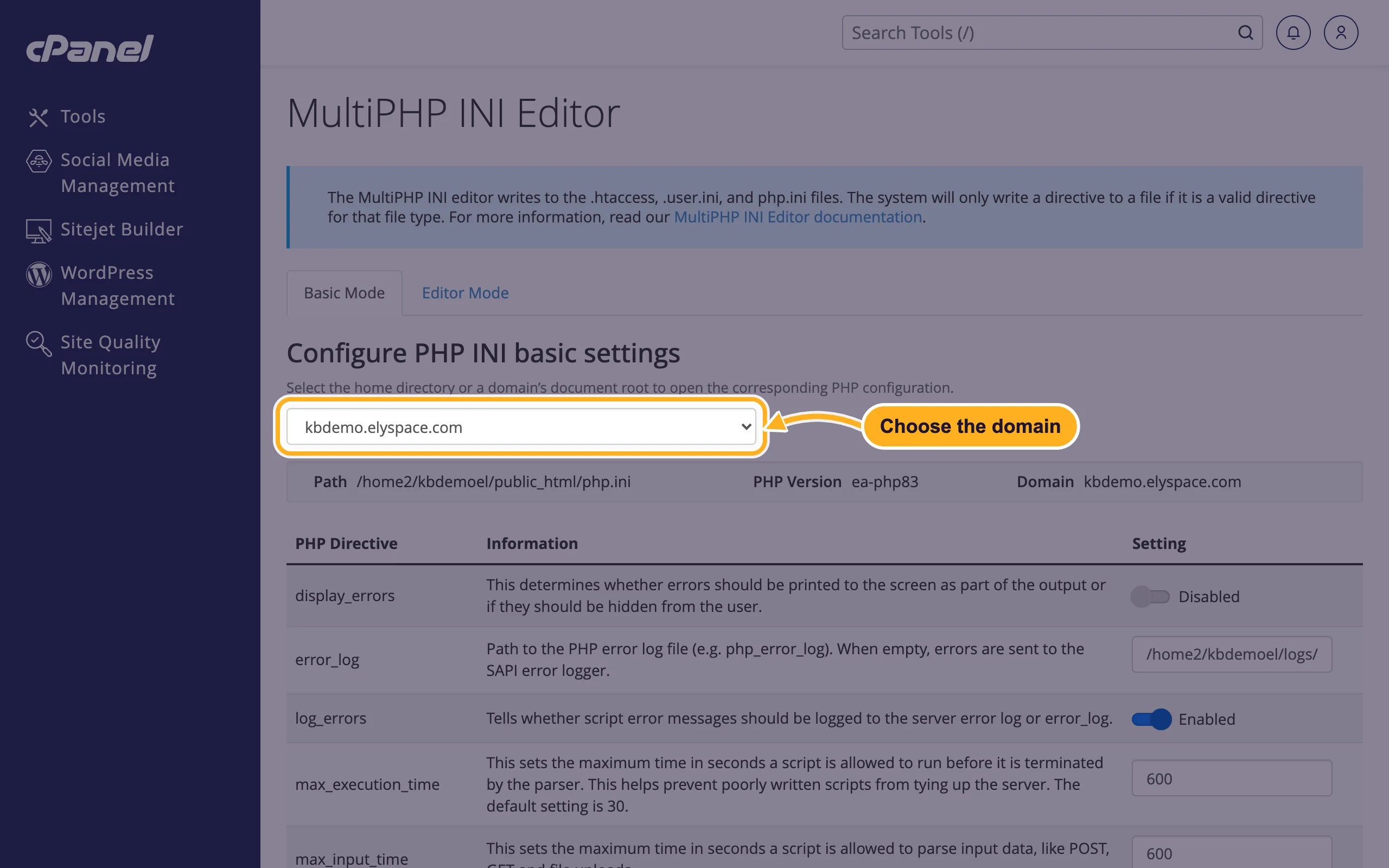
Log in to cPanel and click MultiPHP INI Editor in the Software section. The Basic Mode tab opens.
Under Configure PHP INI basic settings, choose your domain in the list. The table of PHP settings for that domain appears, with the current value of each one in the Setting column.
Change the limits
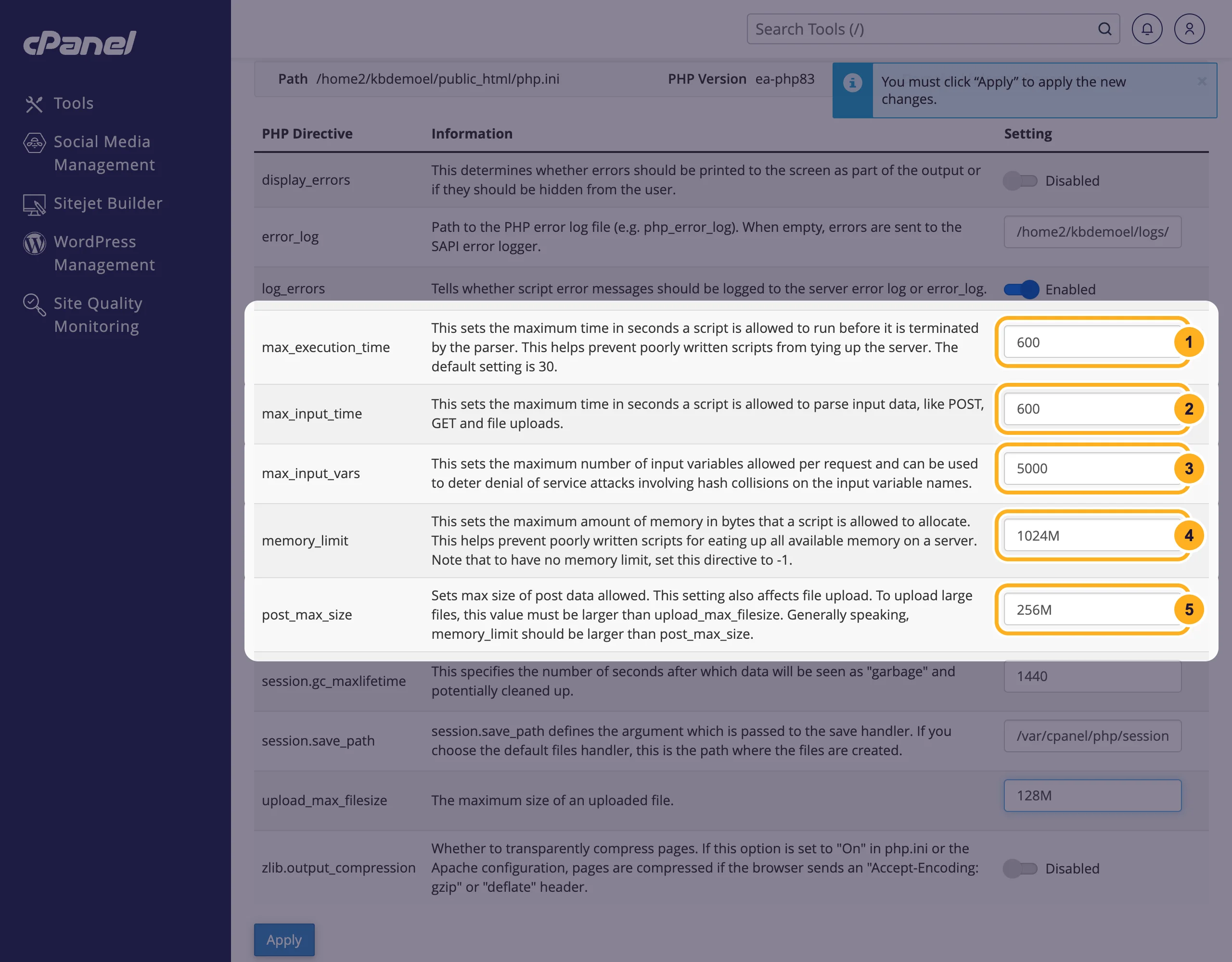
Type the new values in the Setting column. Sizes end in
M(megabytes), times are in seconds:- max_execution_time: how many seconds a script may run before PHP stops it. Raise it if imports, backups or large exports stop halfway.
- max_input_time: how many seconds a script may spend reading uploaded data and form input.
- max_input_vars: how many form fields one request may send. Raise it if a large menu, form or product with many variations doesn't save completely.
- memory_limit: how much memory one script may use, for example
512M. - post_max_size: the largest form post, including all files in it. Keep it at least as high as upload_max_filesize.
Set the upload size and save:
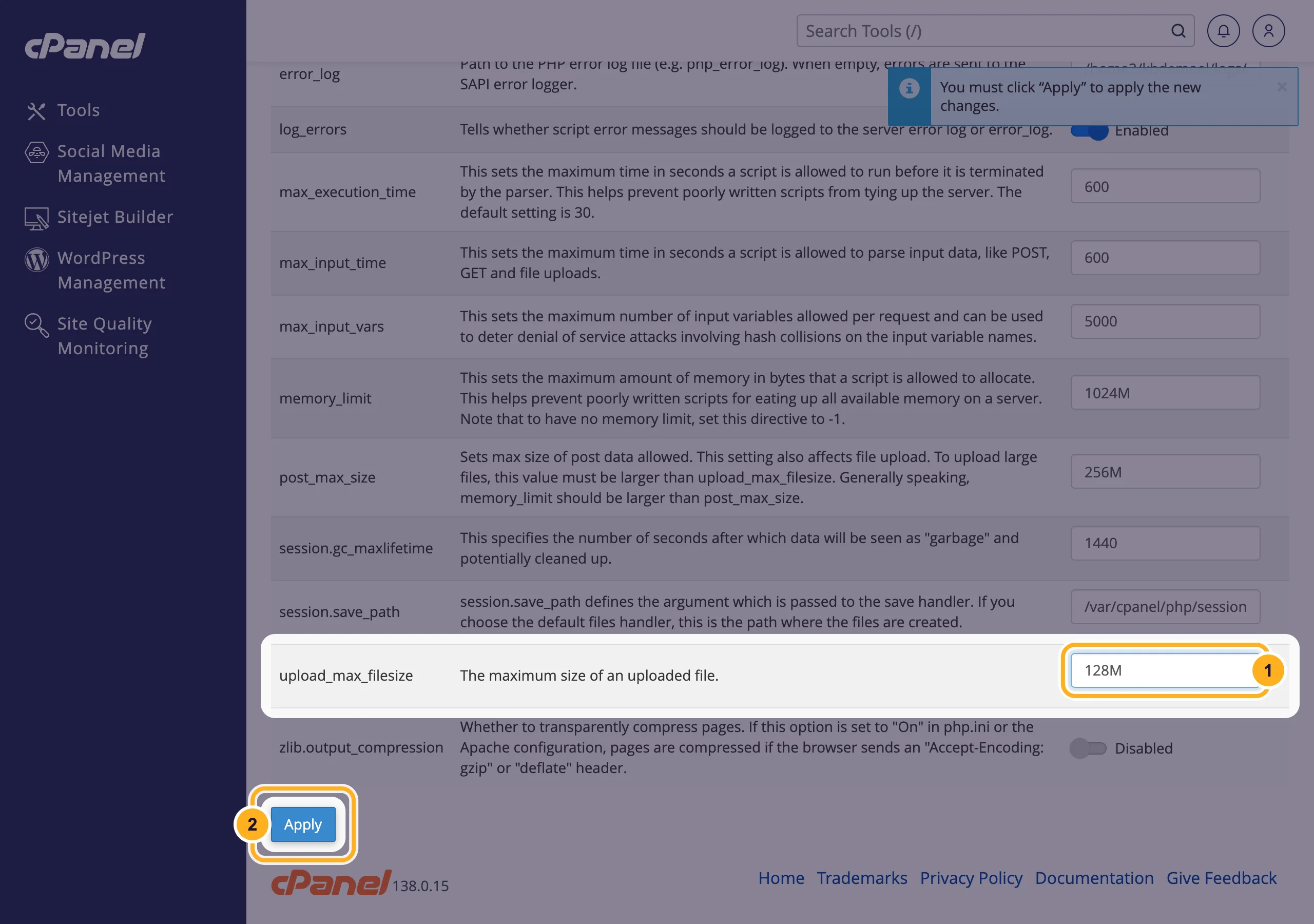
- upload_max_filesize: the largest single file a form, plugin or importer may upload, for example
128M. - Scroll down and click Apply. Until you do, cPanel shows the reminder You must click "Apply" to apply the new changes.
- upload_max_filesize: the largest single file a form, plugin or importer may upload, for example
The new values work at once for new page loads. There is nothing to restart.
The page's own help text gives a useful rule: post_max_size should be larger than upload_max_filesize, and memory_limit larger than post_max_size. If one of them stays low, it becomes the limit.
Check that the new limit is active
- WordPress: go to Media > Add New Media File. The page shows Maximum upload file size. Tools > Site Health > Info > Server lists the memory limit, time limit and upload size too.
- Other sites: create a file such as
info.phpin your site's folder with the File Manager, containing<?php phpinfo();. Open it in your browser and look for the setting. Delete the file again afterwards, because it shows details about your server to anyone.
Common problems
WordPress still shows the old upload limit
Check that you changed the values for the right domain, that both upload_max_filesize and post_max_size are high enough, and that you clicked Apply. Then reload the WordPress page. A plugin or theme can also set its own, lower limit.
The import still stops after a while
Raise max_execution_time and max_input_time as well. Very large database imports are better done another way: see Import a large SQL file into MySQL.
"Allowed memory size exhausted" in the error log
A script needed more than memory_limit. Raise it a step (for example from 256M to 512M). If the error comes back with a much higher limit, a plugin or script has a fault: the error log names the file.
You need a value the editor doesn't accept
Open a ticket and tell us the setting, the value you need and the domain.
Related articles
- Change the PHP version and PHP settings
- Change the PHP timezone (date.timezone)
- View the error log
- Import a large SQL file into MySQL (phpMyAdmin 50 MB limit)
Still stuck? Open a support ticket and we'll help.
