

WordPress Management in cPanel checks your site for known vulnerabilities and applies security measures, such as blocking access to wp-config.php.
Check the security status
Log in to cPanel and click WordPress Management.
On your site's card:
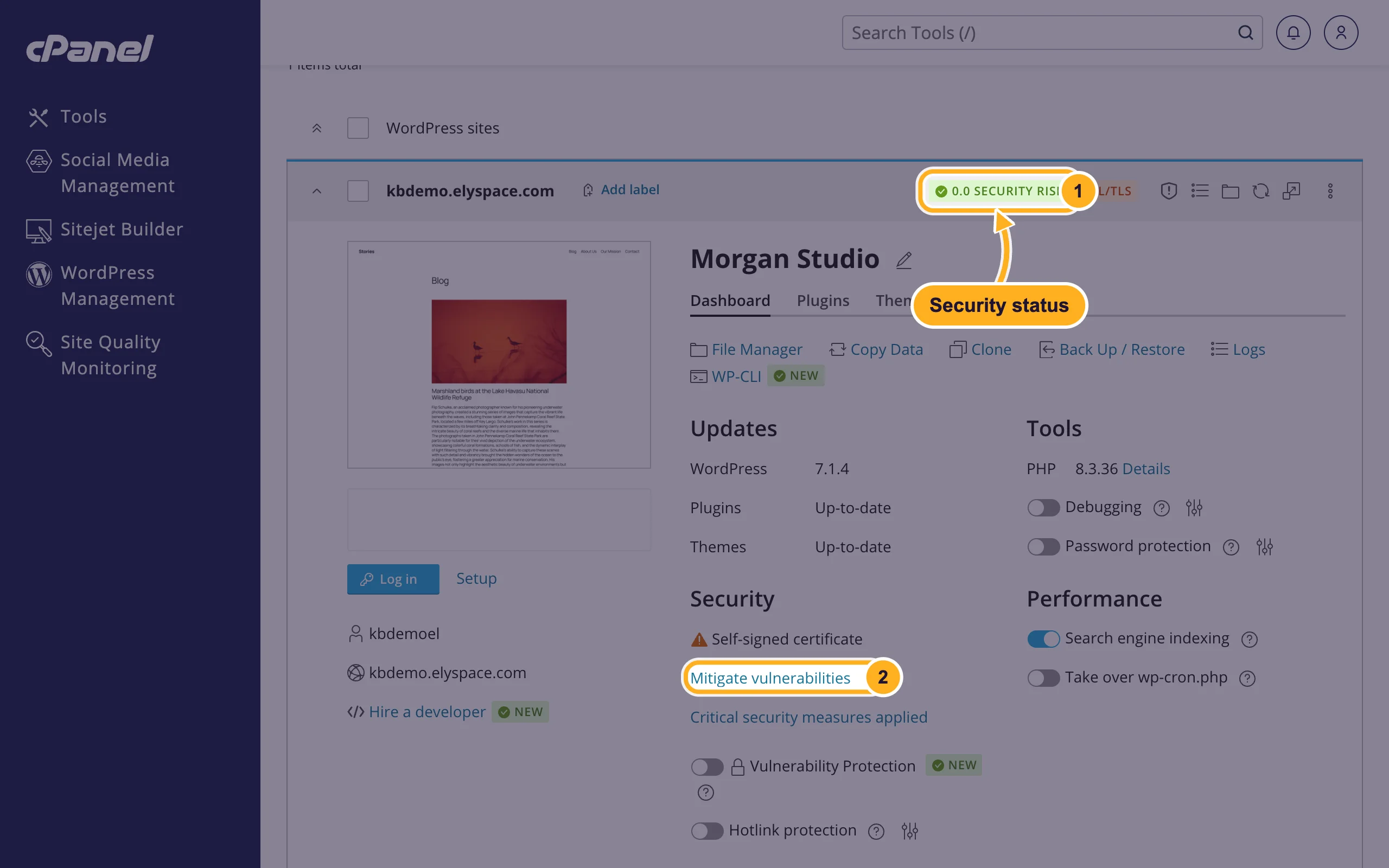
- The label at the top shows the site's Security Risk score. 0.0 is the best value.
- Under Security, click Mitigate vulnerabilities (or the security link shown there) to open Security Status.
The Vulnerable Components tab lists known security problems in your WordPress version, plugins and themes, with their risk level. Most are fixed by updating the item (see Update WordPress, plugins and themes). The Up-to-date box tells you whether updates are waiting; Recheck checks again.
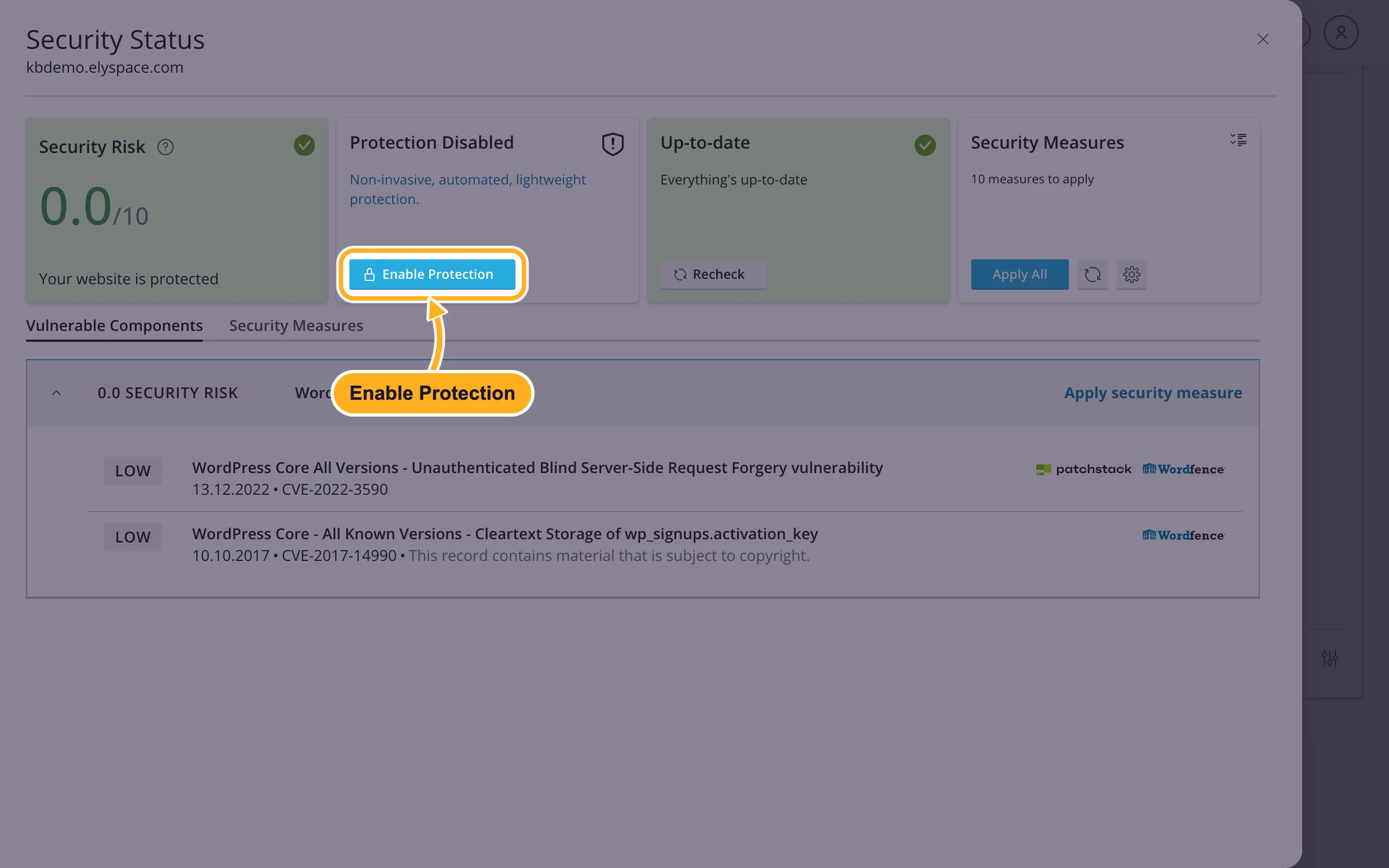
The Protection Disabled box offers Enable Protection, which the tool describes as non-invasive, automated, lightweight protection against known vulnerabilities. The site's card has a matching Vulnerability Protection switch.
Apply security measures
WordPress Management applies the critical measures automatically when you install WordPress with it. You can add more:
Make a backup first (see Back up and restore a WordPress site).
In Security Status, open the Security Measures tab. Measures that aren't applied yet have a warning sign under Status.
- Tick the measures you want, or the box at the top to select all.
- Click Secure.
- Check Security checks the site again afterwards.
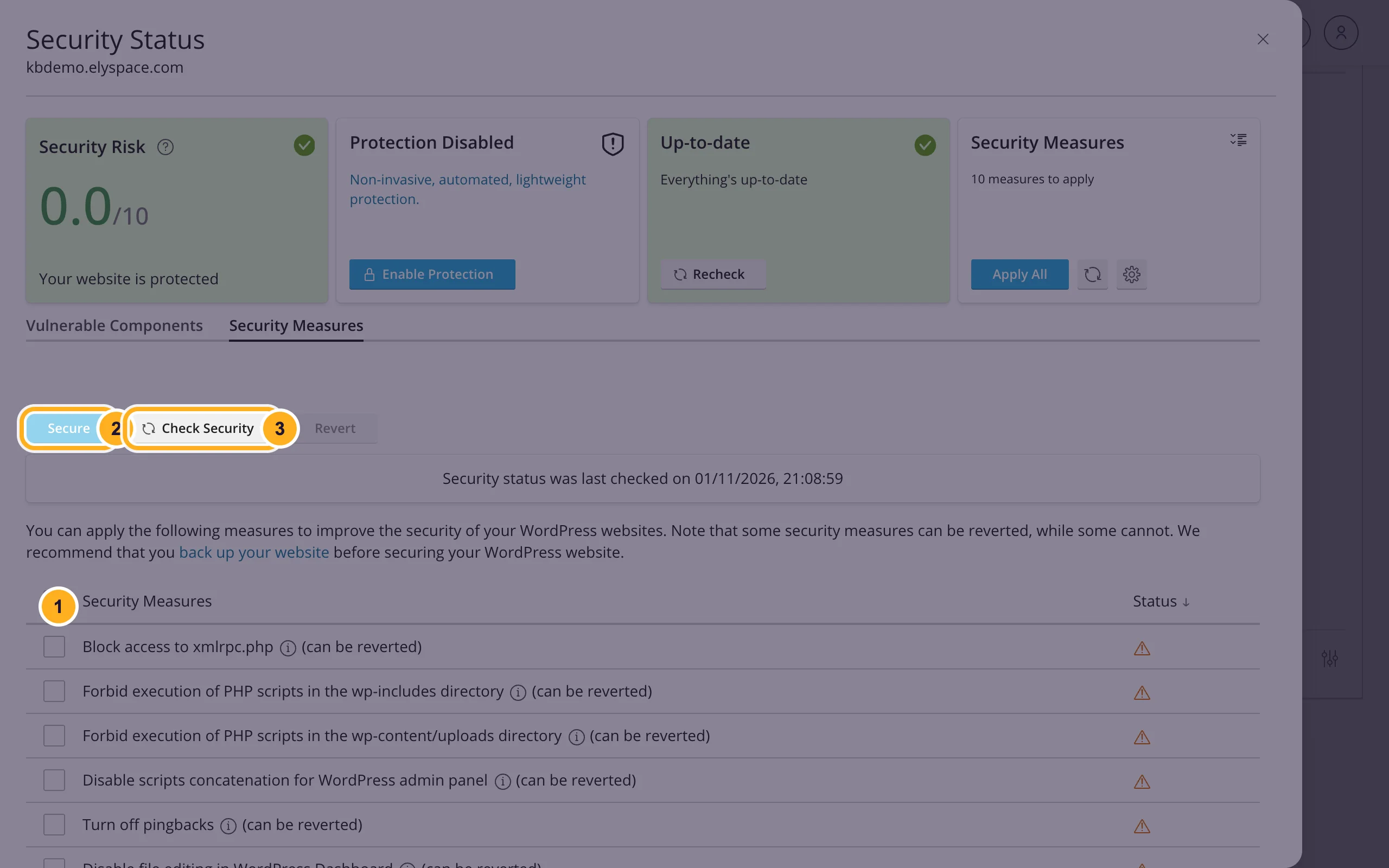
Measures marked (can be reverted) can be undone: tick them and click Revert. Some measures can't be undone, for example Change default database table prefix. Two measures can affect features you use:
- Block access to xmlrpc.php: the WordPress mobile app and some plugins (for example Jetpack) need xmlrpc.php. Leave it unblocked if you use them.
- Disable file editing in WordPress Dashboard: removes the theme and plugin file editors from WordPress. That's good for security; edit files in File Manager instead.
More protection
- Strong admin password: change it with Setup on the site's card (see Log in to your WordPress dashboard).
- Password protection: the switch on the card puts a password prompt in front of the whole site. Useful for a site that isn't public yet or a staging copy.
- Check WordPress Integrity: compares the WordPress core files with the originals from wordpress.org. See Remove malware from index.php.
- Imunify360 in cPanel scans your files for malware all the time. See Scan your website for malware with Imunify360.
- HTTPS: make sure your site has a valid certificate (see Free SSL: check and fix your certificate (AutoSSL)).
Common problems
A plugin stopped working after you applied measures
Open Security Measures, tick the measure you applied last and click Revert. Try one measure at a time to find the one that causes it.
The score stays high after updating
Click Recheck in Security Status. If a plugin has a known problem but no fixed version yet, deactivate it in the Plugins tab of the card until there is one.
Related articles
- Update WordPress, plugins and themes
- Scan your website for malware with Imunify360
- Your website was hacked: what to do first
- Security tips for your ElySpace account
Still stuck? Open a support ticket and we'll help.
