

Change a domain's PHP version in cPanel's MultiPHP Manager. Limits such as memory_limit or upload_max_filesize are set in the MultiPHP INI Editor.
Change the PHP version
Log in to cPanel and click MultiPHP Manager in the Software section.
Under Set PHP Version per Domain:
- Tick the domain (or several domains) in the table. The PHP Version column shows the current version.
- Choose the new version in the PHP Version list.
- Click Apply.
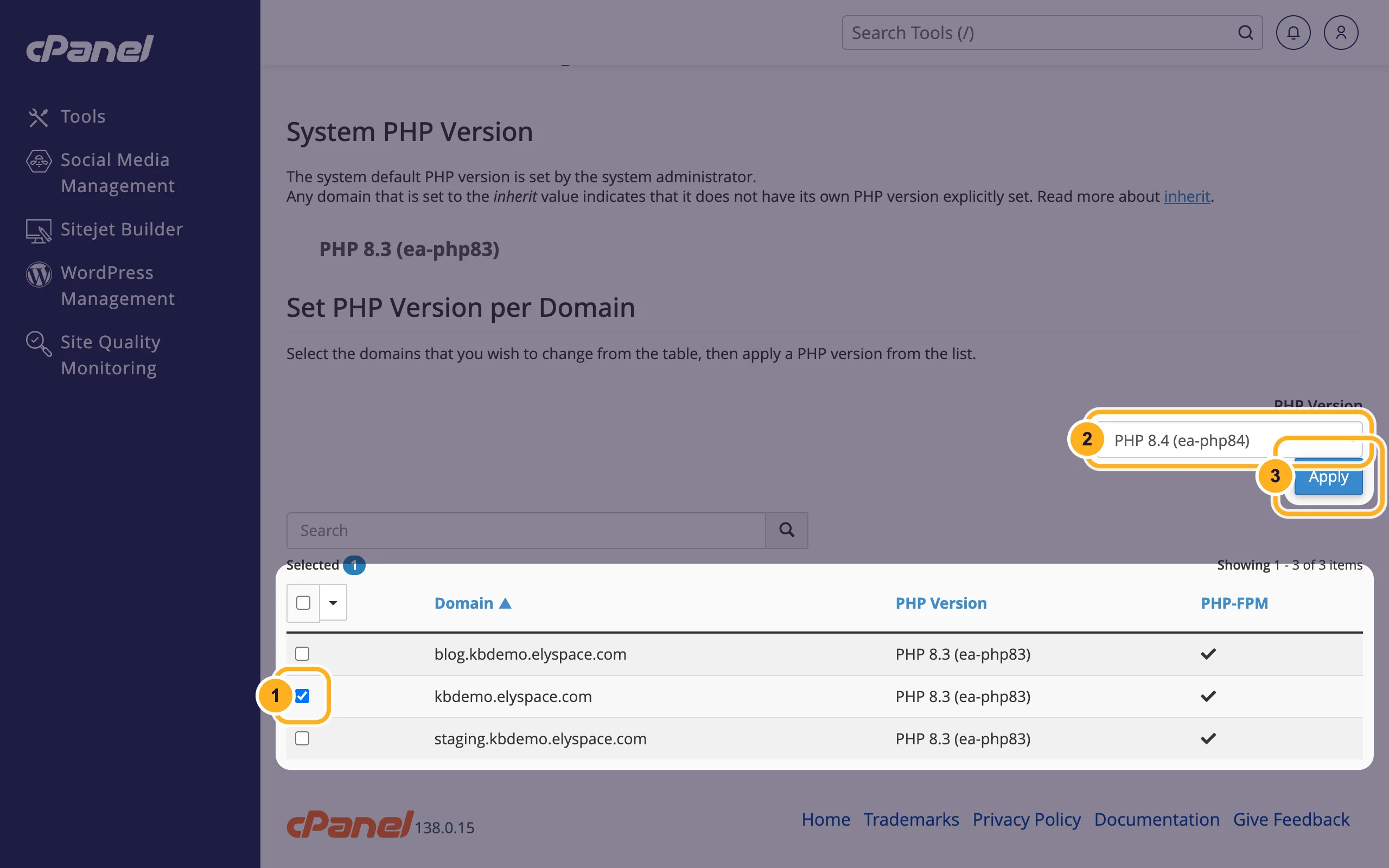
The new version is active within seconds. Open your website and check that it works.
The list shows the versions installed on the server. A version marked [Outdated] no longer gets regular security fixes, so move away from it. inherit means the domain uses the server's default version (shown under System PHP Version), which can change when the server is updated.
Change PHP settings (memory, upload size, time limits)
In cPanel, click MultiPHP INI Editor in the Software section. Basic Mode opens.
Change the values:
- Select the domain in the list.
- memory_limit: how much memory one script may use, for example
512M. - upload_max_filesize: the largest file a form or plugin may upload, for example
128M. Set post_max_size at least as high.
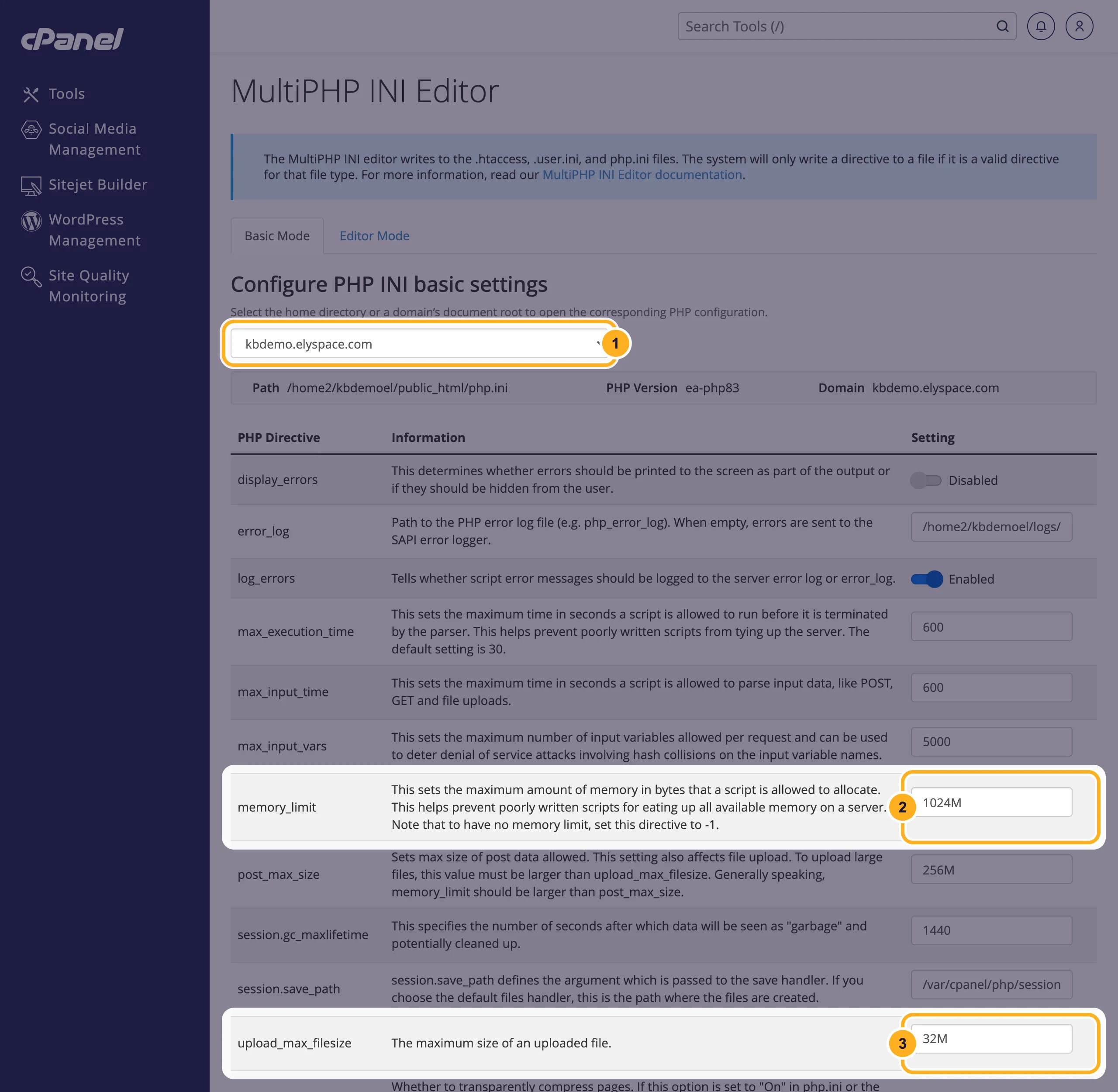
Scroll down and click Apply.
Other useful settings on the same page:
- max_execution_time: seconds a script may run before it stops.
- max_input_vars: raise it if large forms or menus don't save completely.
- display_errors: keep it Disabled on a live site. Errors are written to the log instead, see View the error log.
For settings that aren't in Basic Mode, such as date.timezone, use the Editor Mode tab. See Change the PHP timezone.
Common problems
The site shows an error after changing the PHP version
Your code or a plugin doesn't support the new version. Switch back to the previous version in MultiPHP Manager, update the software, then try again. The error log names the file that failed.
A PHP extension is missing
Open a ticket and tell us the extension name (for example intl or imagick) and the PHP version you use.
WordPress still says the upload limit is low
Check both upload_max_filesize and post_max_size for the right domain, click Apply, then reload the WordPress page.
Related articles
- Change the PHP timezone (date.timezone)
- View the error log
- Update WordPress, plugins and themes
- Set up a cron job
Still stuck? Open a support ticket and we'll help.
