

Every invoice can be downloaded as a PDF or printed from the client area: use the download button in My Invoices or Print and Download PDF on the invoice.
Download an invoice from the list
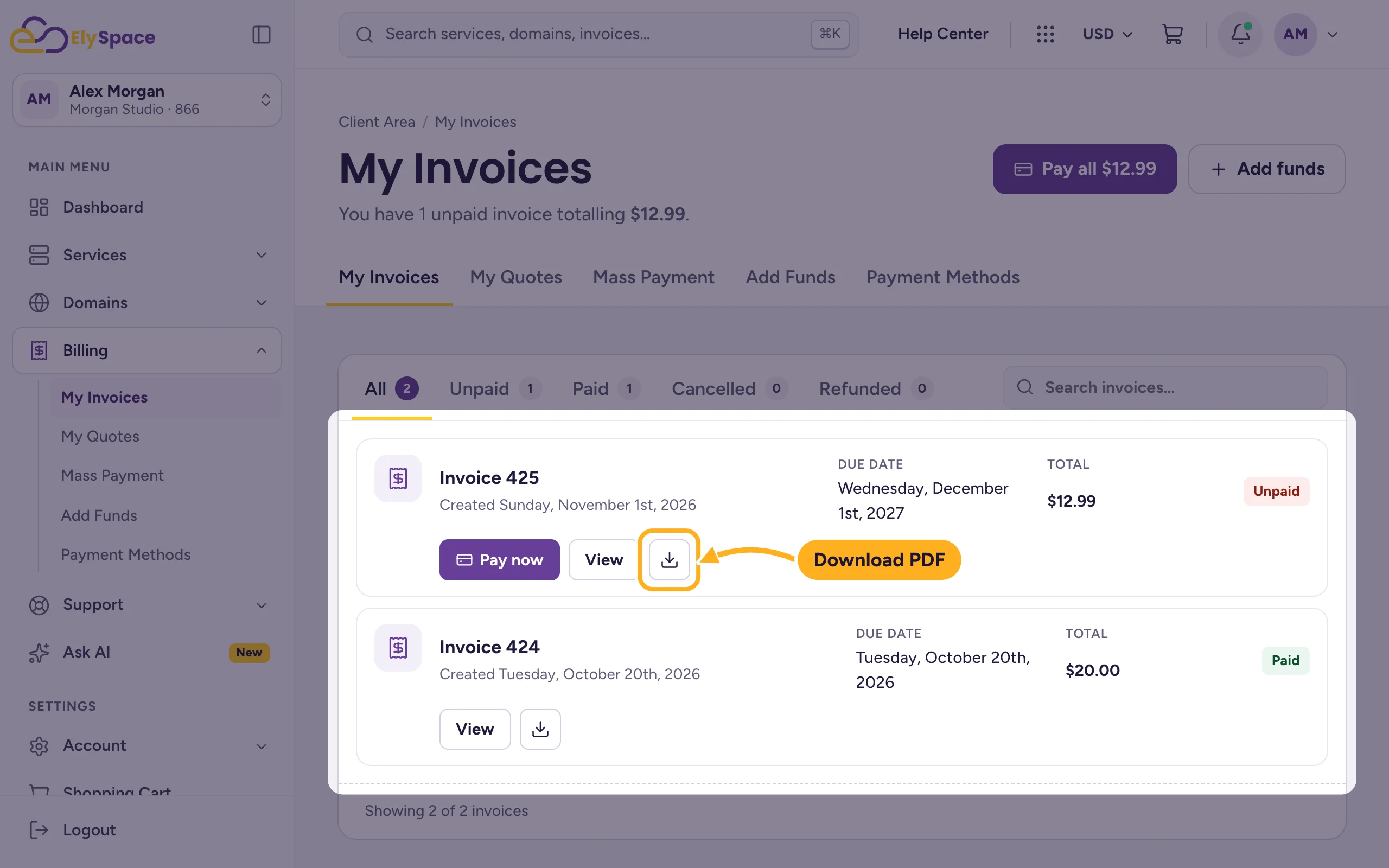
Log in to the client area and go to Billing > My Invoices.
Click the download button (the arrow icon) next to the invoice. The PDF is saved to your downloads folder.
Print or download from the invoice
Click View next to the invoice.
Use the buttons at the top:
- Print opens your browser's print window. Choose your printer, or "Save as PDF".
- Download PDF saves the invoice as a PDF file.
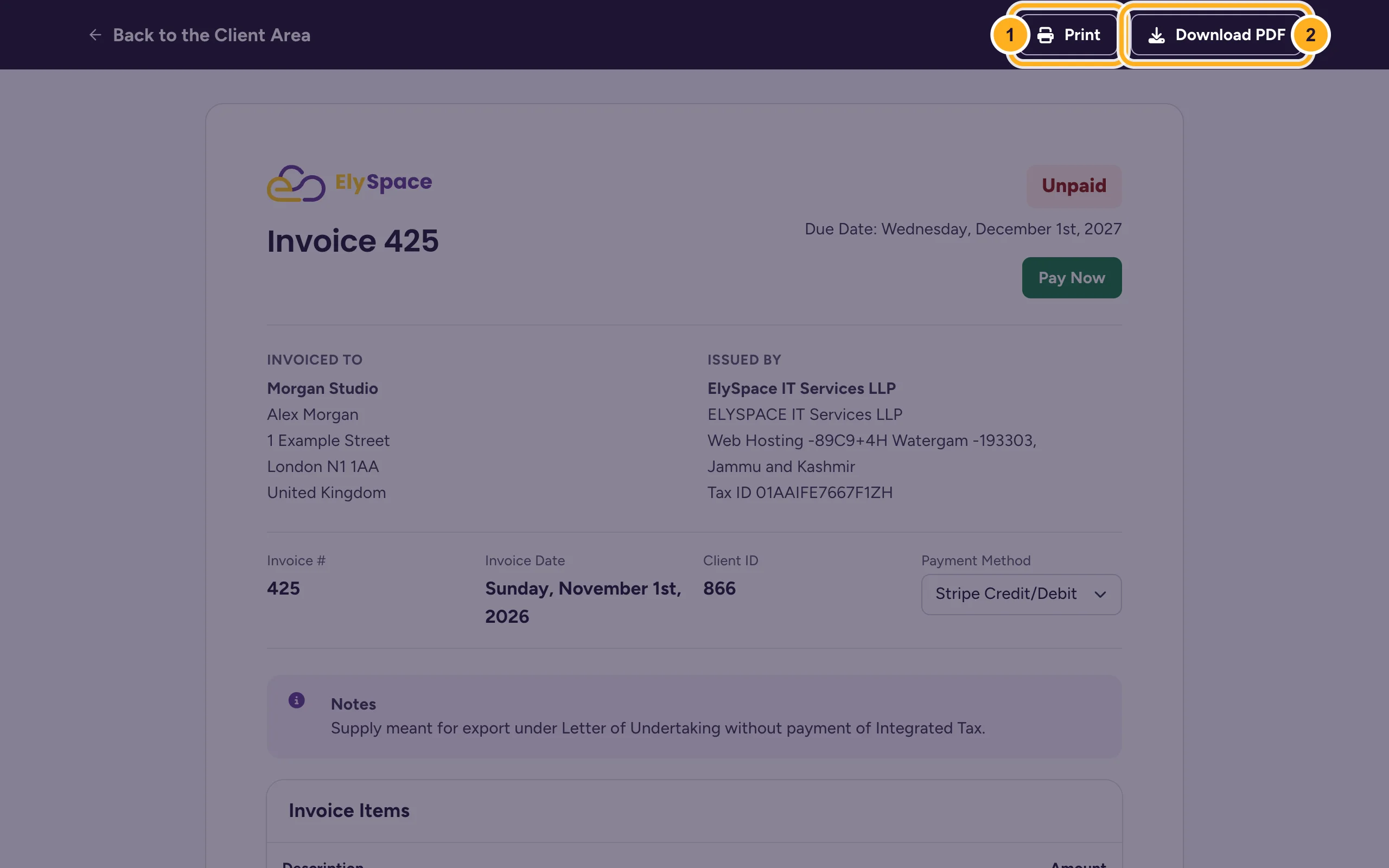
Back to the Client Area at the top left takes you back to your invoice list.
Common problems
Nothing happens when you click download
Check your browser's downloads list: the file is often saved without a message. On a phone, it may open in a PDF viewer instead.
The name or address on the invoice is wrong
Invoices show the details from your profile. Update them as described in Update your profile and billing address. If an existing invoice needs a correction, open a ticket in Sales Support.
Related articles
- Invoices, quotes and payments: the billing section
- Update your profile and billing address
- Pay an invoice
Still stuck? Open a support ticket and we'll help.
