

All your tickets are under Support > Tickets in the client area. Open one with View & reply to read our answer and write back.
Find your tickets
Log in to the client area and click Support > Tickets. A new reply also shows up in the bell at the top and under Open tickets on the dashboard.
The list shows each ticket's subject, number, department and last update:
- The tabs All, Open, Answered, Awaiting reply and Closed filter the list.
- The status of each ticket.
- View & reply opens the ticket.
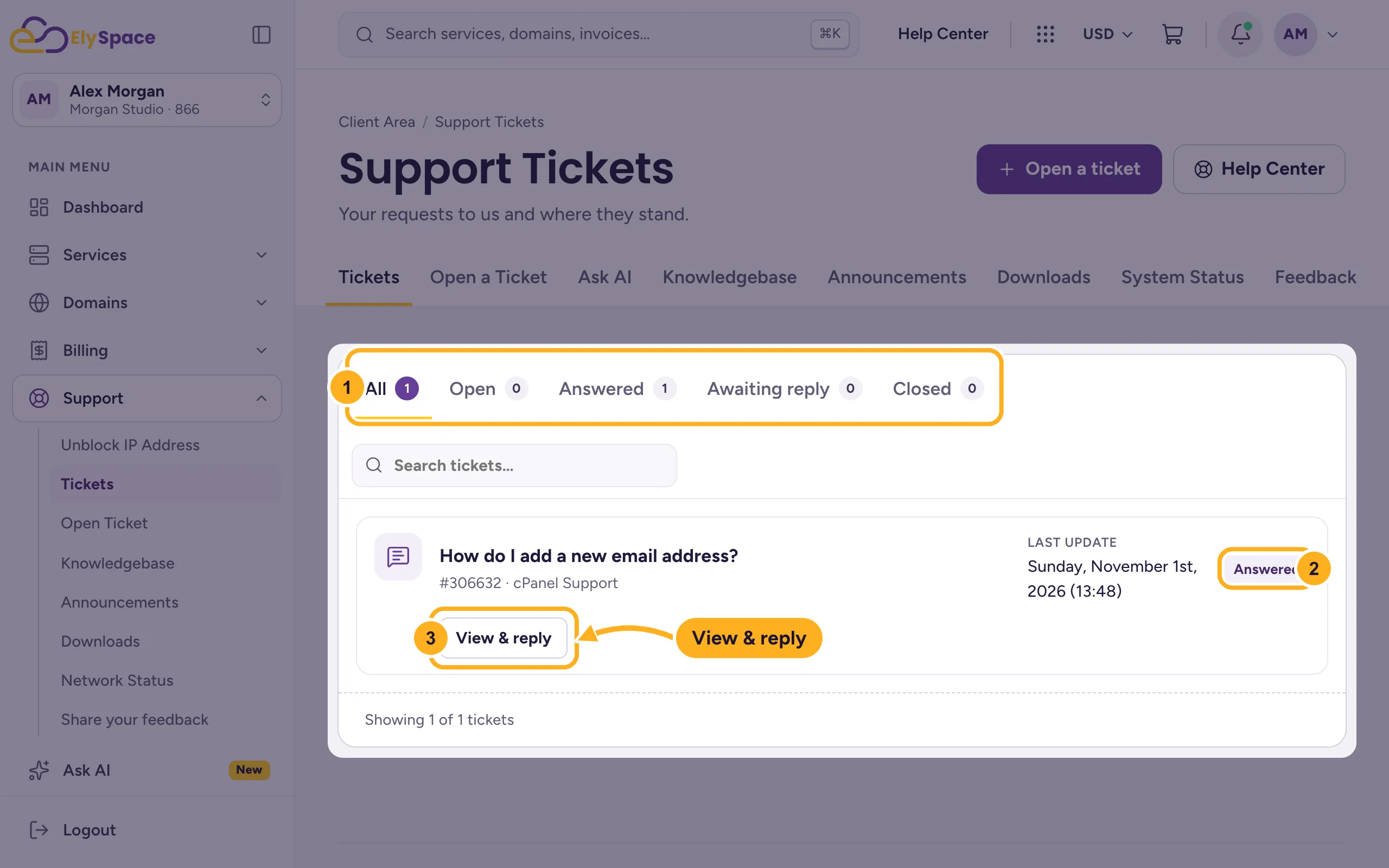
The status tells you whose turn it is: Answered means we've replied and are waiting for you; Open and Awaiting reply mean the ticket is waiting for us; Closed means it's finished.
Read and reply
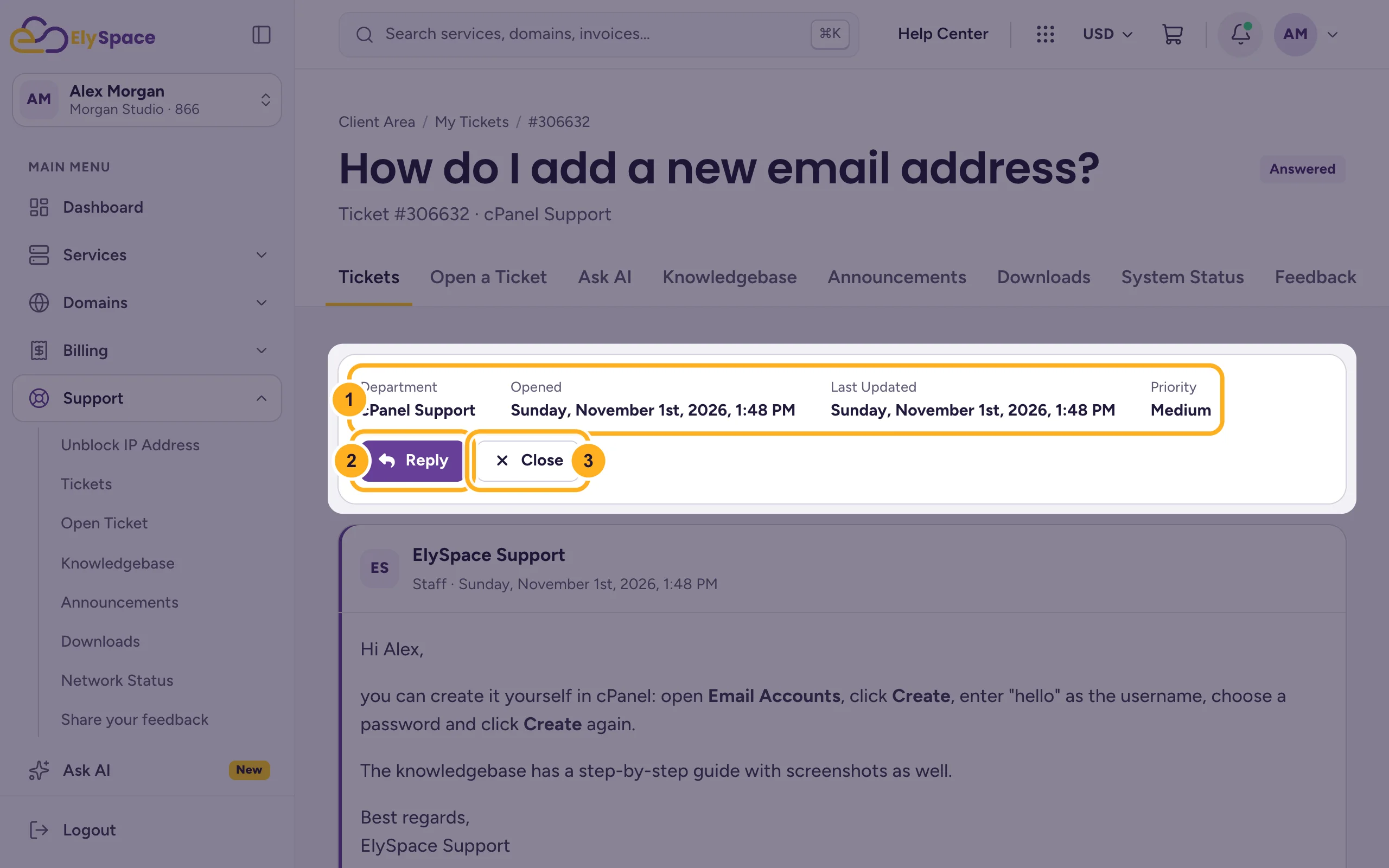
At the top of the ticket you see:
- Department, Opened, Last Updated and Priority.
- Reply: jumps to the reply form at the bottom.
- Close: closes the ticket when your question is solved.
The messages are listed below.
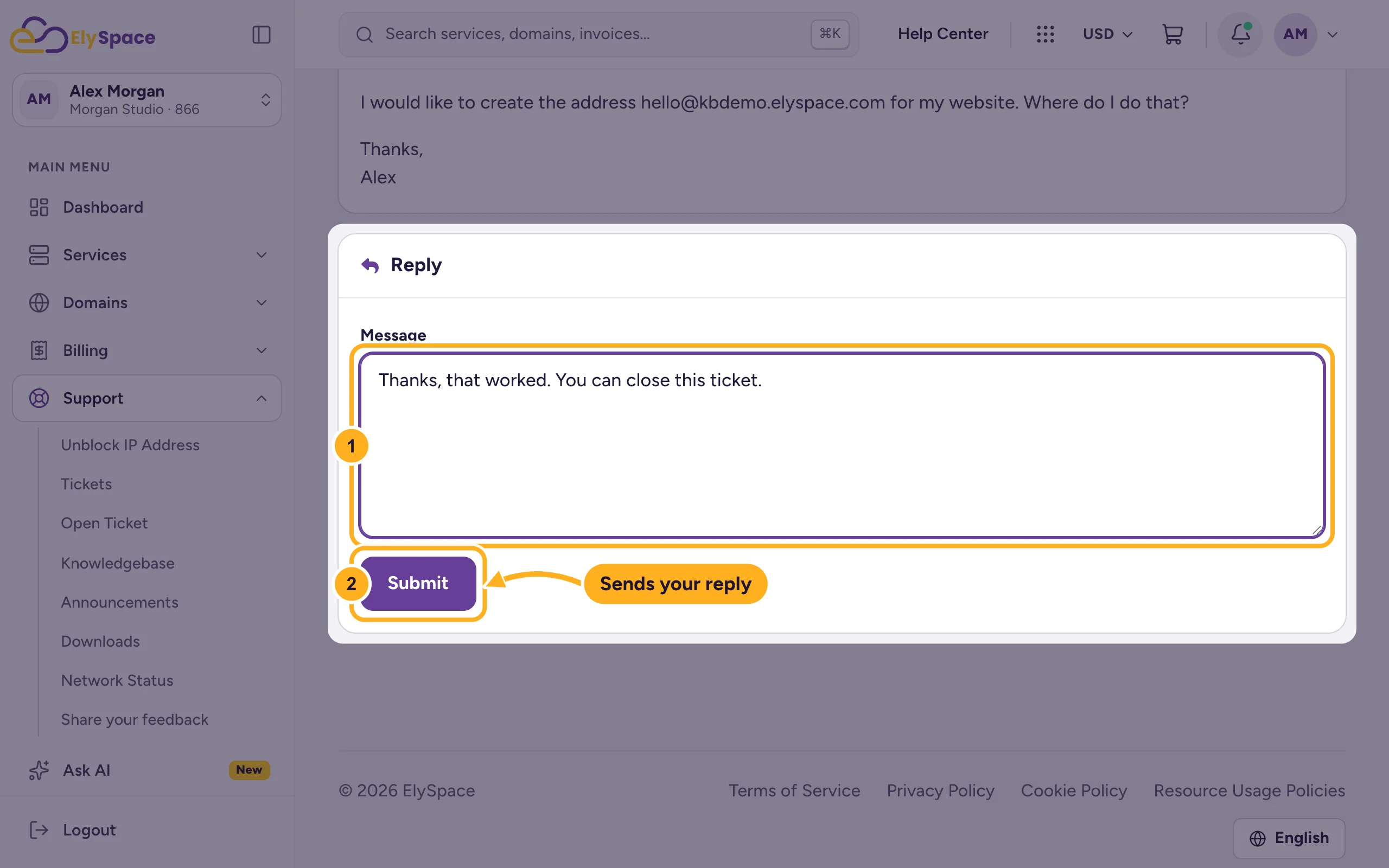
Write your answer:
- Type it in Message.
- Click Submit.
Keep each problem in its own ticket and reply in the same ticket while it's about the same problem: the whole history stays in one place. You can rate our replies with the stars below each one.
Common problems
You can't find a ticket
Click All and use Search tickets. Tickets you sent from another email address or account appear in that account.
The ticket was closed but the problem is back
Open a new ticket and mention the old ticket number, so we can see what was done before.
Related articles
- Open a support ticket
- Contact ElySpace: chat, phone, WhatsApp and email
- Share feedback about ElySpace
Still stuck? Open a support ticket and we'll help.
