

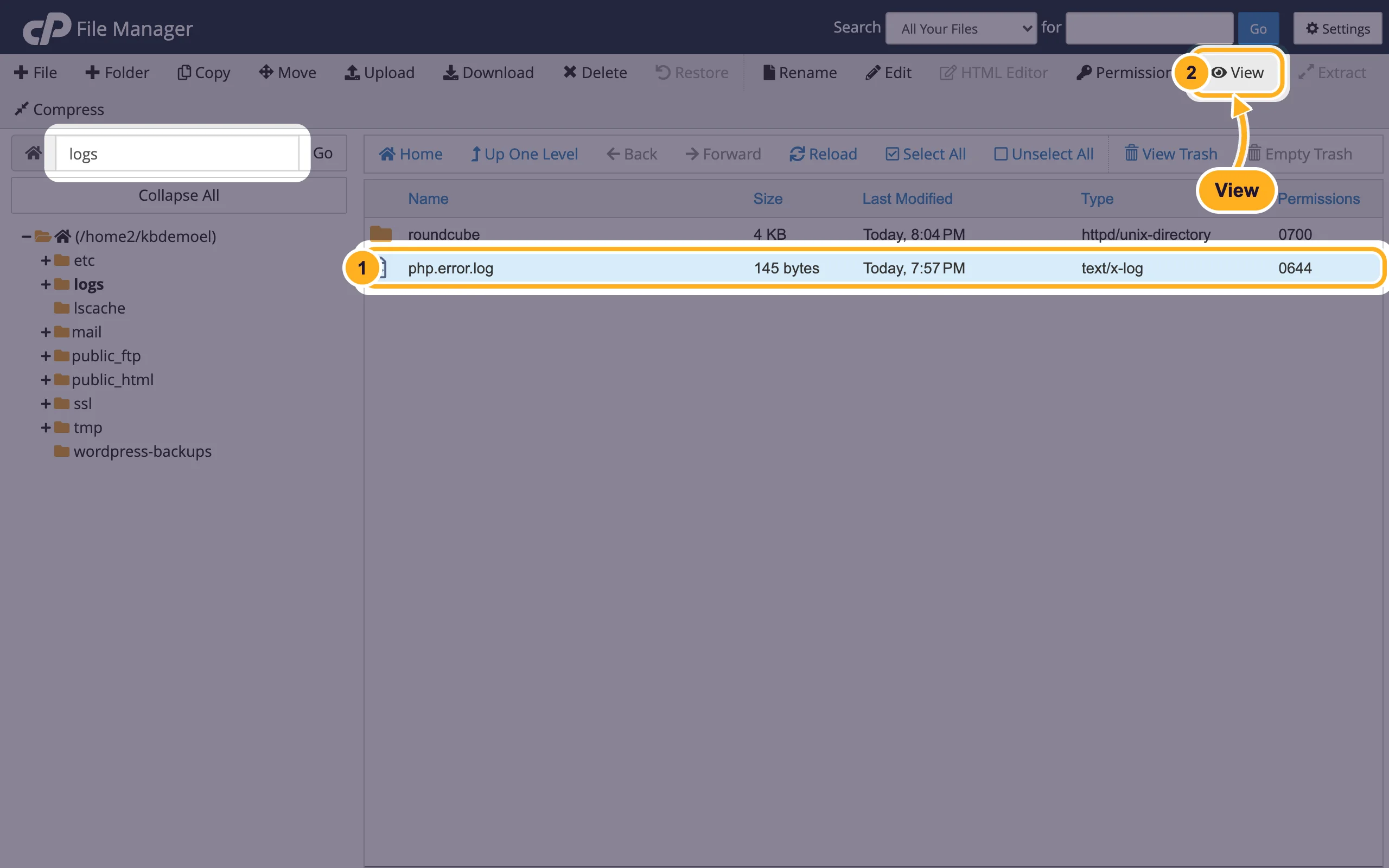
PHP errors from your website are written to logs/php.error.log in your home directory. Open it in File Manager. cPanel's Errors page shows web server errors.
Read the PHP error log
Most website problems, such as a blank page, "500 Internal Server Error" or a WordPress "critical error", are PHP errors. They are logged here.
Log in to cPanel and open File Manager.
Type
logsin the path box on the left and click Go. Then:- Click php.error.log.
- Click View in the toolbar.
The newest entries are at the bottom. Each line has the date and time (in UTC), the type of error, the message, and the file and line number, for example:
[01-Nov-2026 14:27:36 UTC] PHP Warning: Example warning in /home/username/public_html/test.php on line 3
The log location is set in the error_log setting of the MultiPHP INI Editor (Basic Mode, see Change the PHP version and PHP settings). If your log is somewhere else, the path is shown there. Some apps also write a file called error_log into the folder of the script.
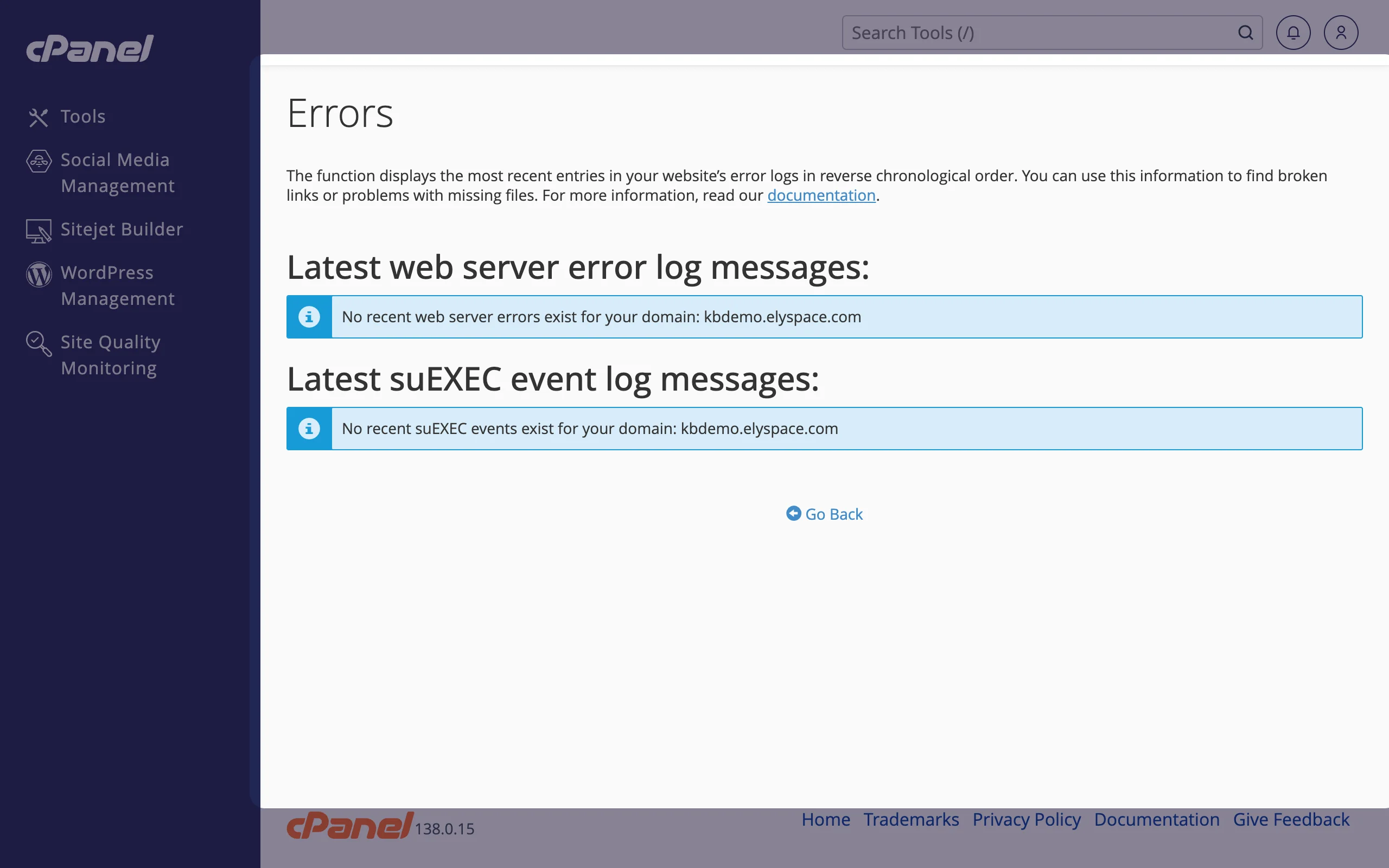
Web server errors: the Errors page
Click Errors in the Metrics section to see the latest web server messages for your domain, such as blocked requests. If it says No recent web server errors exist for your domain, check the PHP error log above.
What the common messages mean
| Message contains | Meaning and fix |
|---|---|
PHP Fatal error: Allowed memory size … exhausted | A script needs more memory. Raise memory_limit in the MultiPHP INI Editor, or find the plugin that uses so much. |
PHP Fatal error: Uncaught Error: Call to undefined function | Usually a plugin or theme that doesn't fit your PHP version. Update it, or change the PHP version back. |
PHP Parse error: syntax error | A typo in a PHP file that was just edited. The file and line are in the message. |
Maximum execution time … exceeded | A script ran too long. Raise max_execution_time or make the task smaller. |
PHP Warning, PHP Deprecated | Usually harmless notes for developers. They don't stop the site. |
Common problems
The log file is very large
A plugin that writes the same warning on every visit can fill the log. Fix or update that plugin, then delete the old php.error.log in File Manager. A new one is created when the next error happens.
There's no php.error.log file
No PHP error has happened since the account was created, or the log path is different. Check error_log in the MultiPHP INI Editor.
The site shows "There has been a critical error on this website"
Look at the last lines of the log: they name the plugin or theme. See Fix "There has been a critical error on this website".
Related articles
- Change the PHP version and PHP settings
- Fix "There has been a critical error on this website"
- Manage files: edit, move, zip and set permissions
- Create custom error pages (404 and others)
Still stuck? Open a support ticket and we'll help.
