

Change cPanel's language under Account Preferences. To tidy the home page, fold or move tool groups, and use Reset Page Settings to undo it.
Change the language
Log in to cPanel, click the person icon in the top right corner and choose Account Preferences.
In the Change Language box:
- Choose your language in the Language list, for example Arabic, German, Spanish or French.
- Click Save Changes.
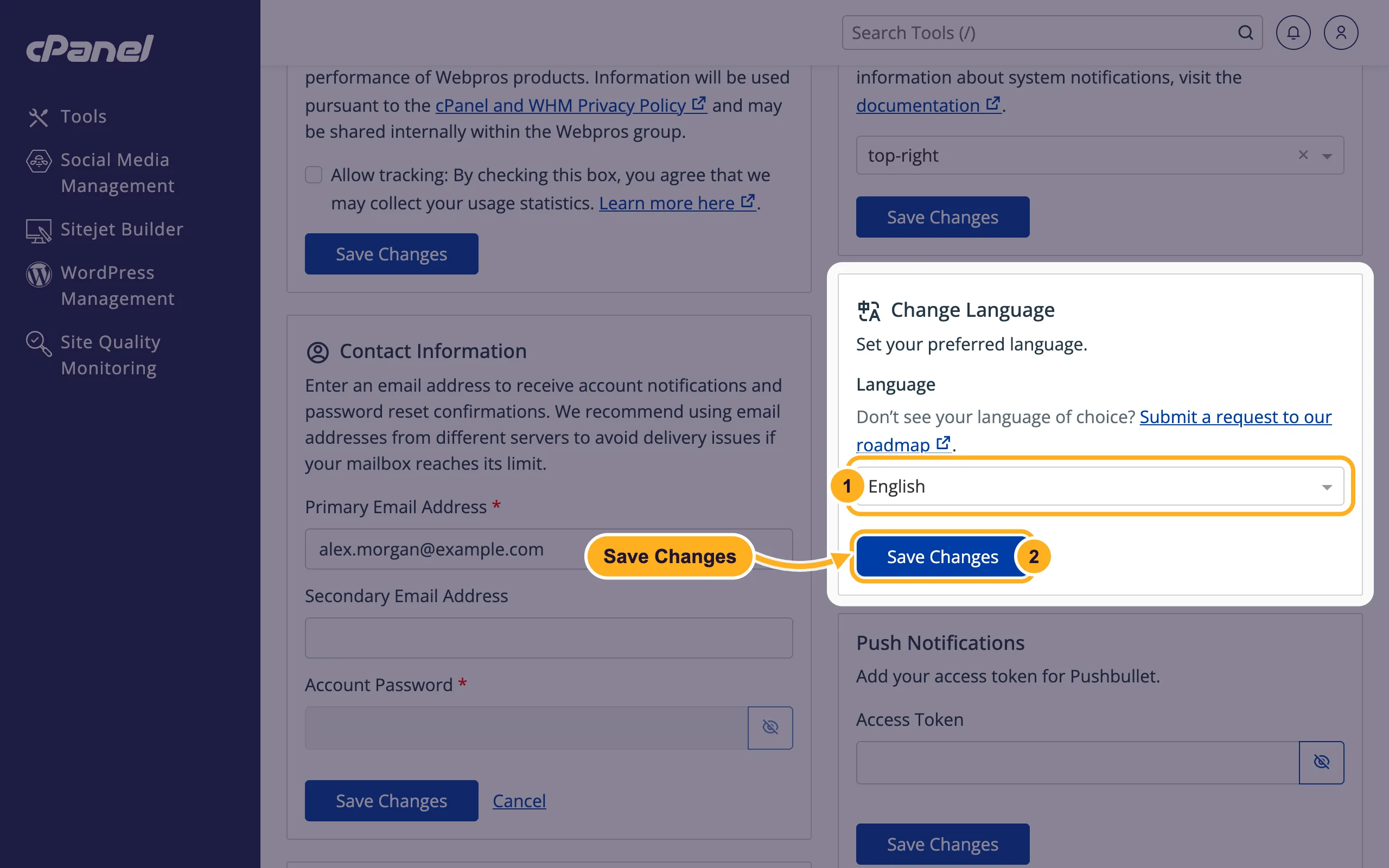
cPanel switches to the new language. The setting only changes cPanel itself, not your website or the client area. To change the client area's language, see Change the language or currency.
The row of languages under the cPanel login form changes the language of the login page itself.
Change how the home page looks
The cPanel theme on our servers (Jupiter) has one look, there are no other styles or colors to choose from. You can arrange the tool groups on the home page, though:
- Move a group: drag a group's title bar (for example Email) up or down to put the tools you use most at the top.
- Fold a group: click the arrow at the right end of the title bar to hide its tools. Click it again to show them.
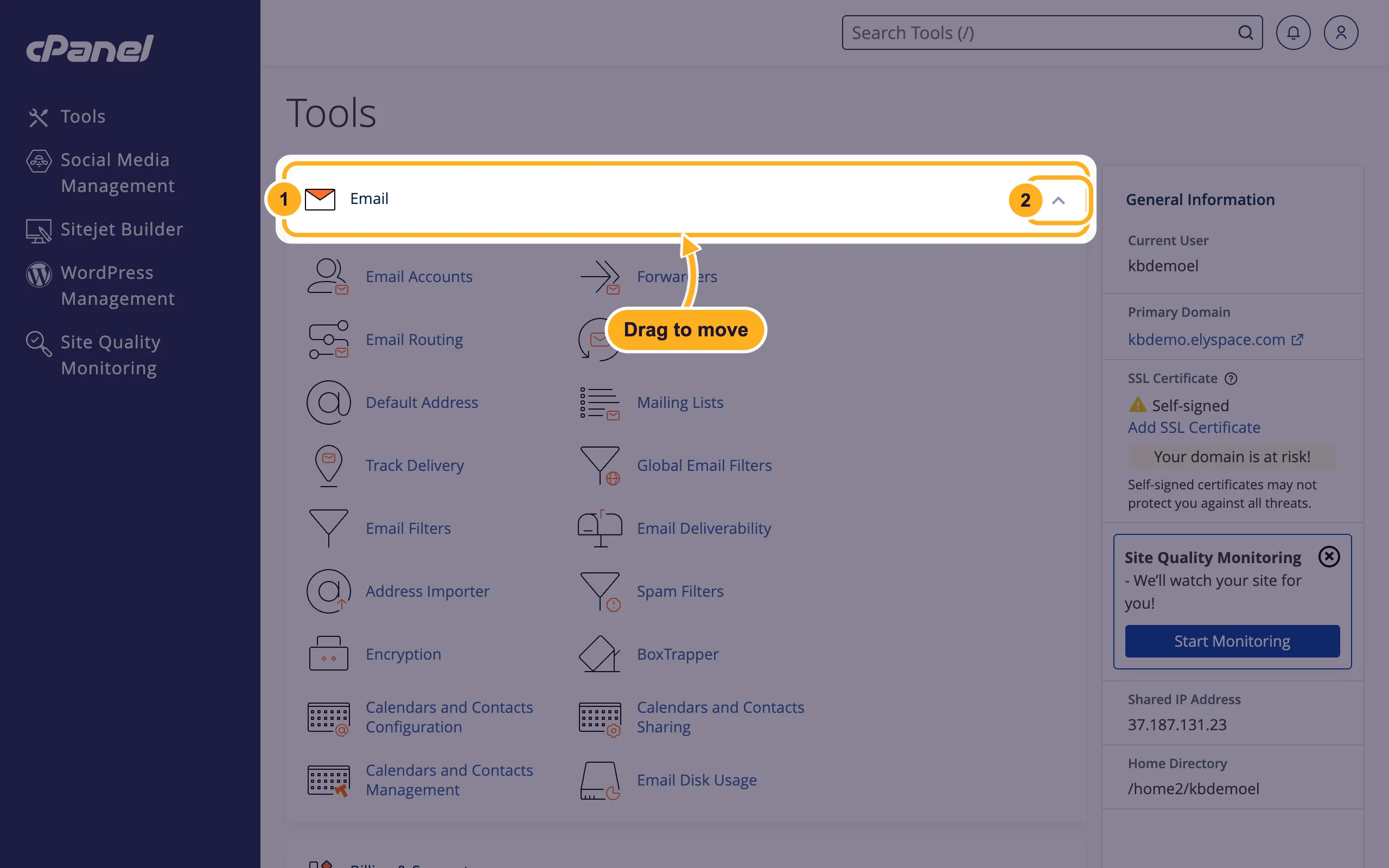
cPanel remembers the order and folded groups for your account.
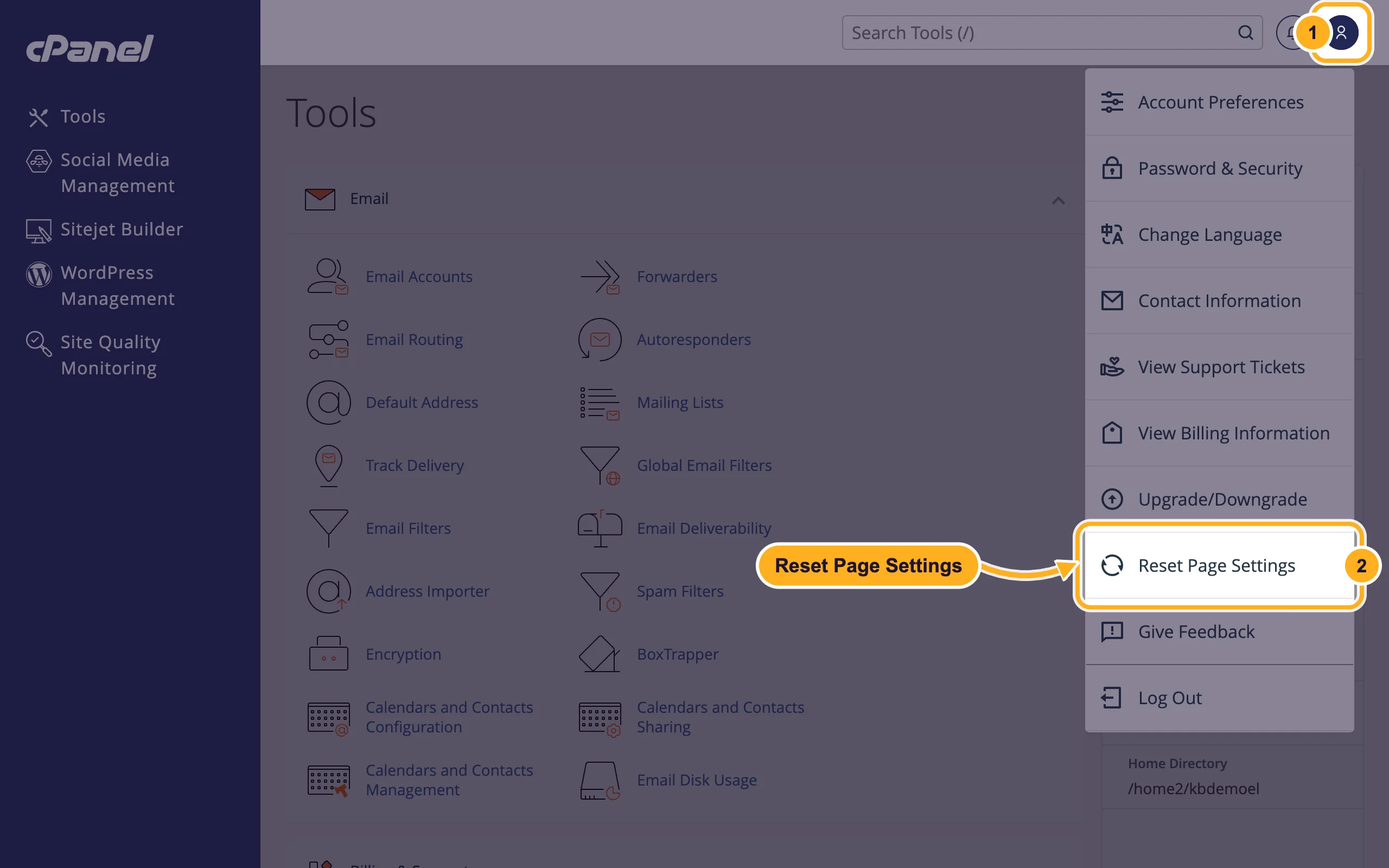
Undo your changes: Reset Page Settings
Click the person icon in the top right corner.
Click Reset Page Settings. The groups go back to their normal order and are all open again.
Common problems
You can't read the cPanel language any more
Open the user menu (the person icon in the top right corner): the first entry is Account Preferences. The Change Language box is on the right side of that page, with the language list and a blue save button below it.
Some texts stay in English
A few tools, such as WordPress Management or Imunify360, come with their own texts and may not be translated into every language.
Related articles
Still stuck? Open a support ticket and we'll help.
