

Forgot your cPanel password? Set a new one in the client area on your hosting plan's Change Password tab. You don't need the old password for this.
Set a new cPanel password
Log in to the client area, go to Services > My Services and click Manage next to the plan.
Change the password:
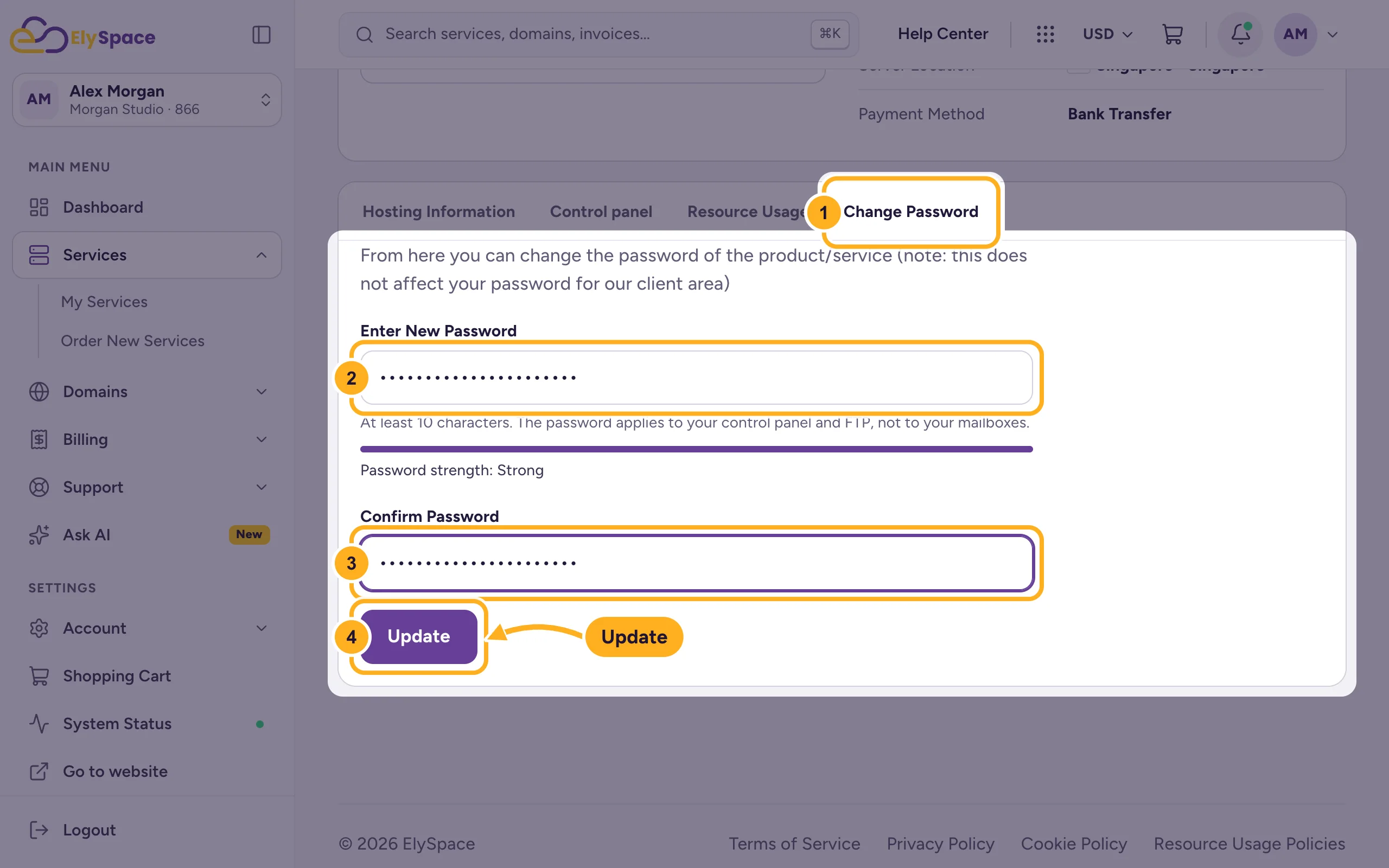
- Click the Change Password tab below the plan details.
- Enter New Password: at least 10 characters. The bar below shows how strong it is.
- Confirm Password: type it again.
- Click Update.
The new password works right away for cPanel and FTP.
Change it inside cPanel
If you're already logged in to cPanel, you can also change it there: open Password & Security under Preferences, enter the old password and the new one, and save. For that way you need the old password.
Common problems
You only want to get into cPanel
You don't need the password for that. Click Log in to control panel in the client area. See Log in to cPanel from the client area.
The password isn't accepted
Use at least 10 characters and mix upper and lower case letters, numbers and symbols. Don't reuse a password you use elsewhere.
Your FTP program or website stops connecting
Programs that log in with the cPanel user, for example FileZilla, need the new password too. Update it in their settings.
Related articles
Still stuck? Open a support ticket and we'll help.
