

Save a card under Billing > Payment Methods and your invoices are paid with it automatically on their due date. You can change or remove it there too.
Save a card
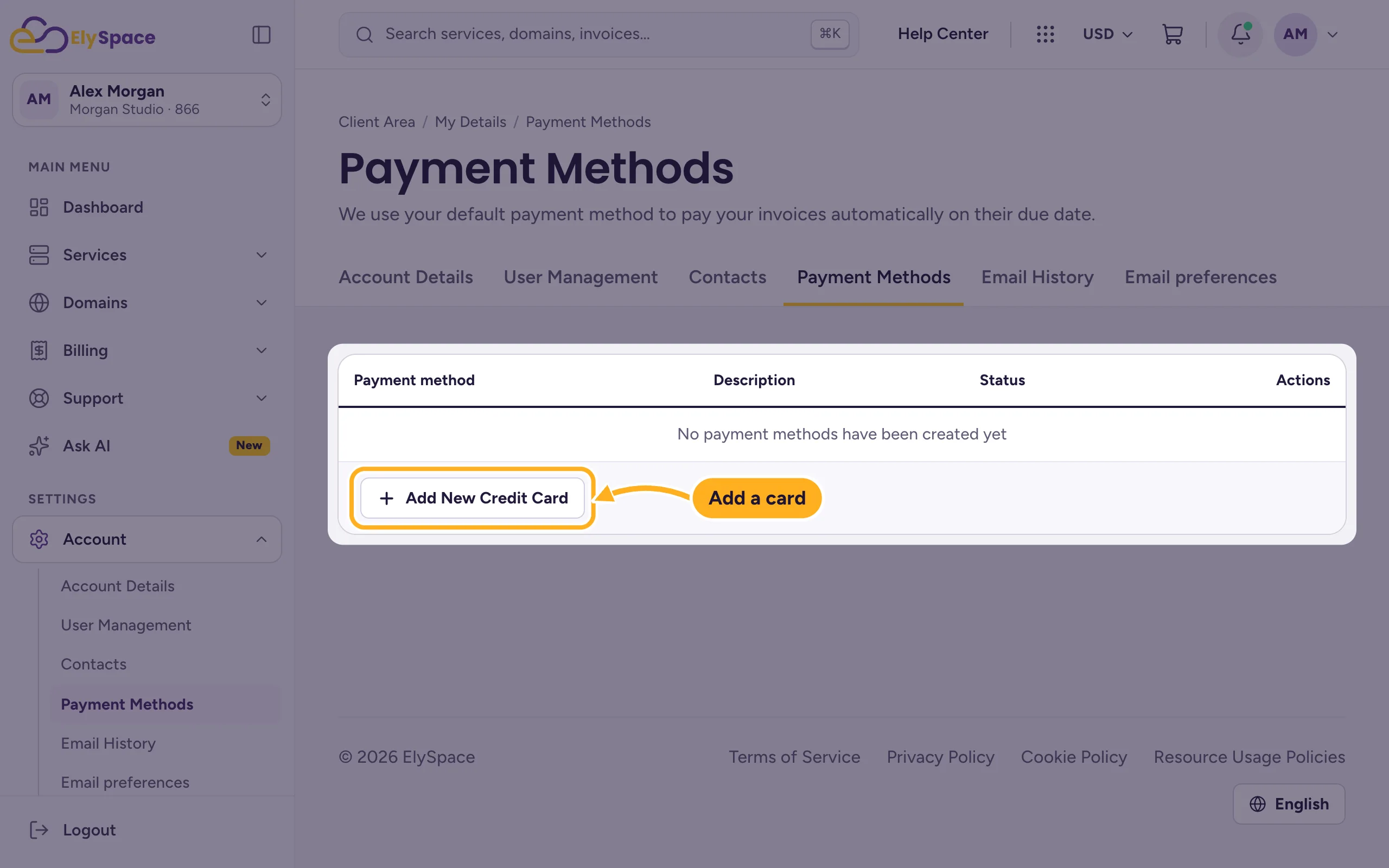
Log in to the client area and go to Billing > Payment Methods.
Click Add New Credit Card.
Fill in the card form:
- Card Number.
- Expiry Date.
- CVV/CVC2: the 3 digits on the back of the card (Where do I find this? shows you).
- Billing Address: the address from your profile is selected. Click Add a new address if the card is registered to a different one.
- Click Save Changes.
The Description field is optional, for example
Business card.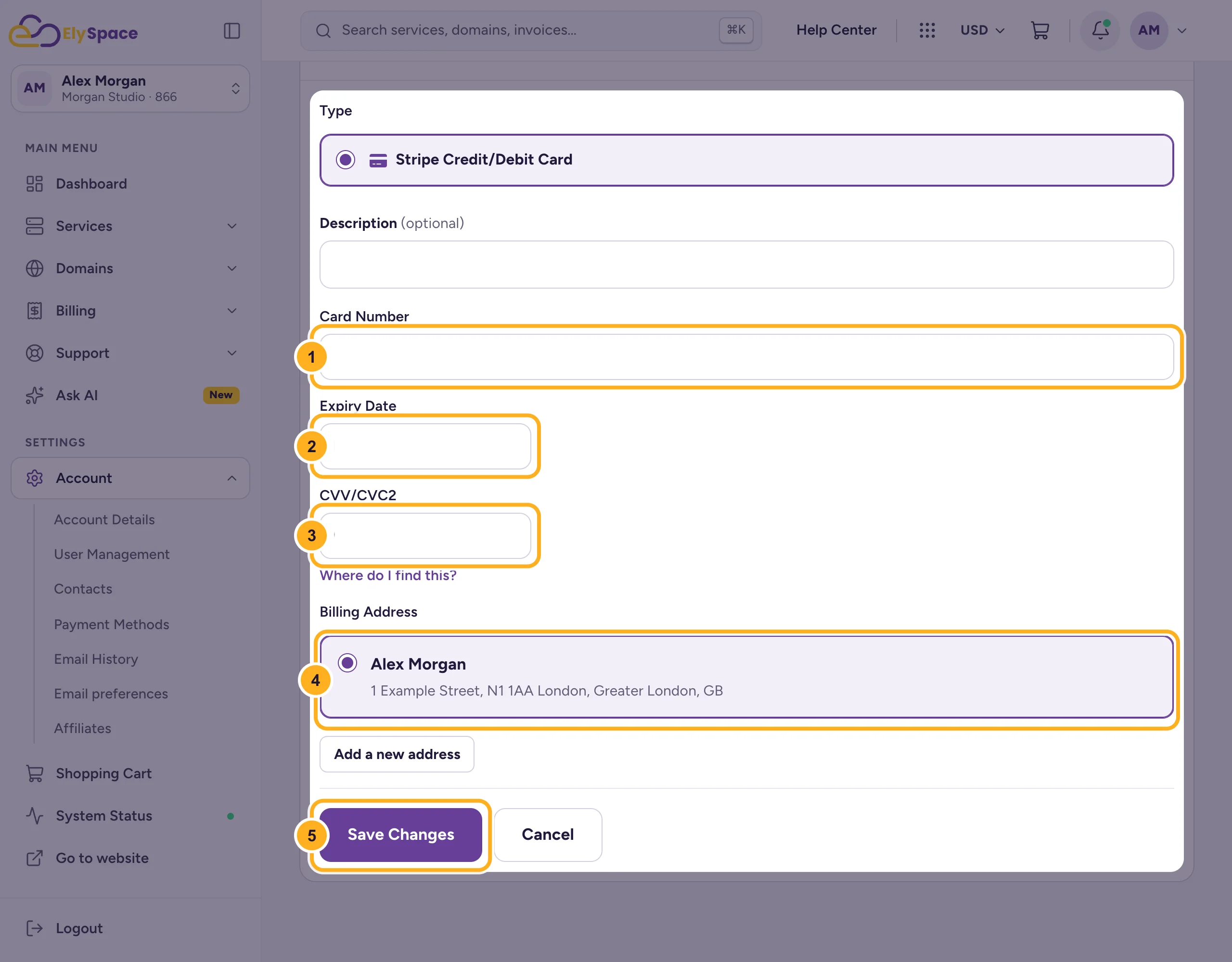
If your bank asks you to confirm the card, for example with a code in its app or by SMS, do that to finish.
The card now appears in the table on the Payment Methods page. Card details are stored by our payment provider Stripe, not in the client area.
Change or remove a card
Your saved cards are listed under Billing > Payment Methods. Use the buttons in the Actions column of a card to change or delete it. To replace an expired card, add the new card first, then delete the old one.
Common problems
The card is declined when you save it
Check the number, expiry date and CVV, and that the billing address matches the one your bank has. Some banks block online or international payments until you allow them in the banking app.
You want to pay with UPI or PayPal automatically
Only cards can be saved. Pay UPI, PayPal, crypto and bank transfer invoices yourself, or add account credit in advance.
Related articles
Still stuck? Open a support ticket and we'll help.
