

With Pay all on My Invoices, or Mass Payment in the Billing menu, you pay all your unpaid invoices together in one payment instead of one by one.
Pay all unpaid invoices
Log in to the client area and go to Billing > My Invoices.
Start the payment in one of these places:
- Pay all at the top of My Invoices. The button shows the total of your unpaid invoices.
- Mass Payment in the Billing menu (also a tab on every billing page).
On the dashboard, Pay now on the Unpaid card does the same.
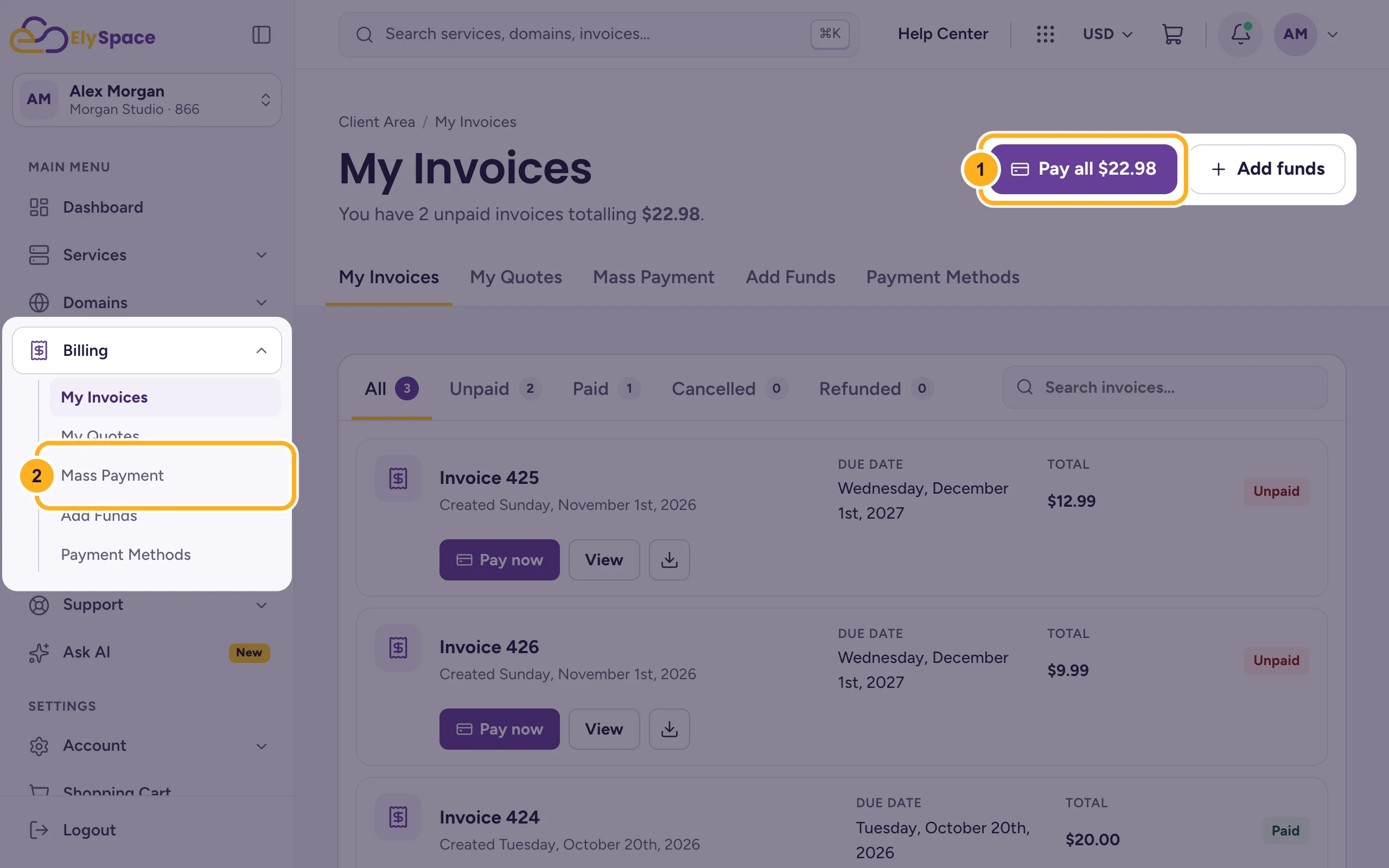
The Mass Payment page opens:
- The list shows every unpaid invoice with its number, what it's for, its due date and amount.
- Total Due is the sum you pay.
- Select Mass Payment Gateway: choose how you want to pay. See Payment methods we accept.
- Click Make Payment. The button shows the total.
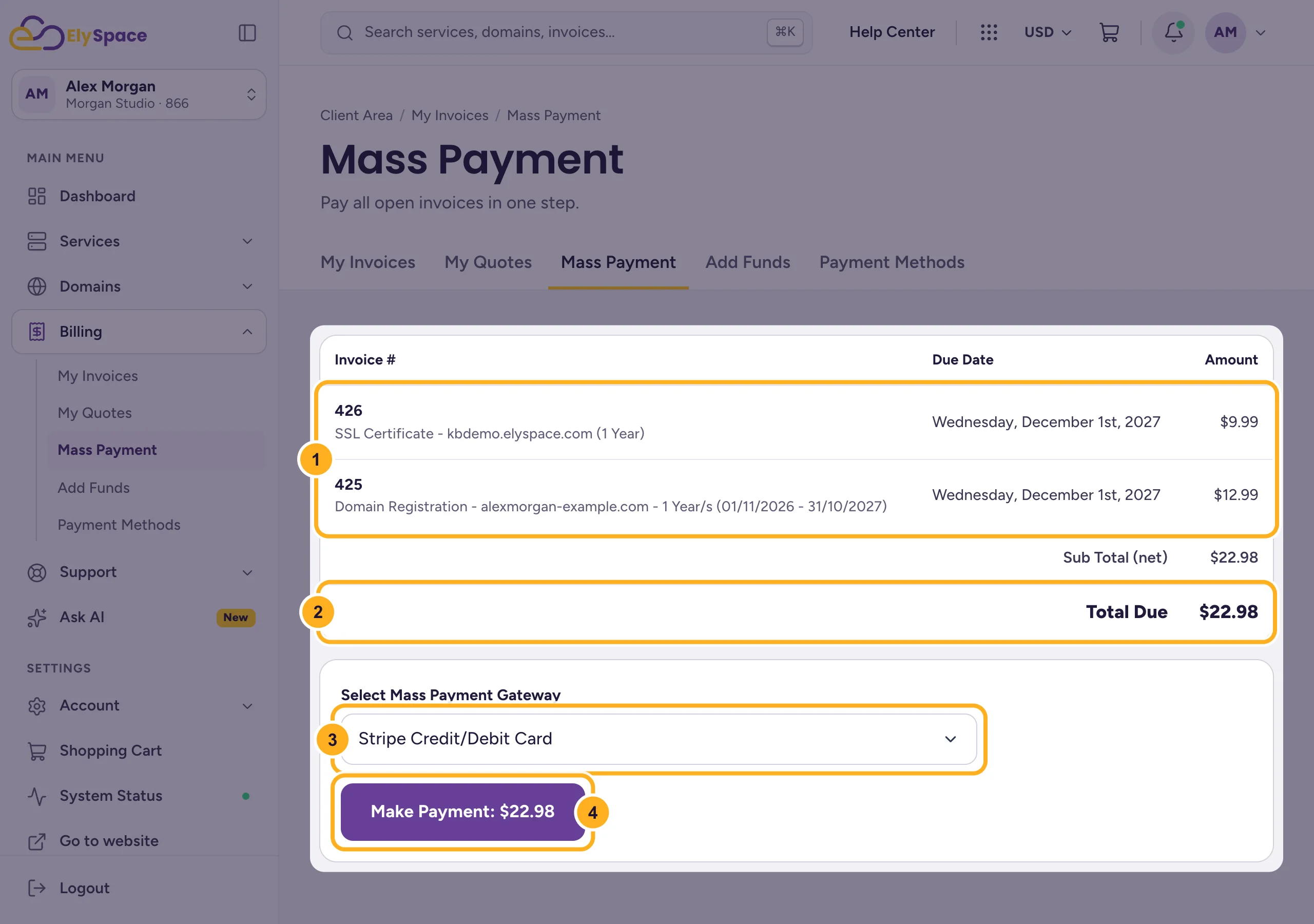
This creates one combined invoice for the total. Pay it like any other invoice, with the method you chose. See Pay an invoice.
Once the combined invoice is paid, all the invoices it includes show Paid. If only one invoice is unpaid, Pay all opens that invoice directly.
Common problems
You only want to pay some of the invoices
Pay them one by one with Pay now next to each invoice.
An invoice still shows Unpaid after the mass payment
Reload the page after a few minutes. If it stays unpaid, open a ticket in Sales Support with the invoice numbers and the payment reference.
Related articles
- Pay an invoice
- Invoices, quotes and payments: the billing section
- Add funds to your account (account credit)
Still stuck? Open a support ticket and we'll help.
