

Add Funds lets you pay money in advance. The credit is used automatically for your next invoices, so you don't have to pay each one separately.
Add funds
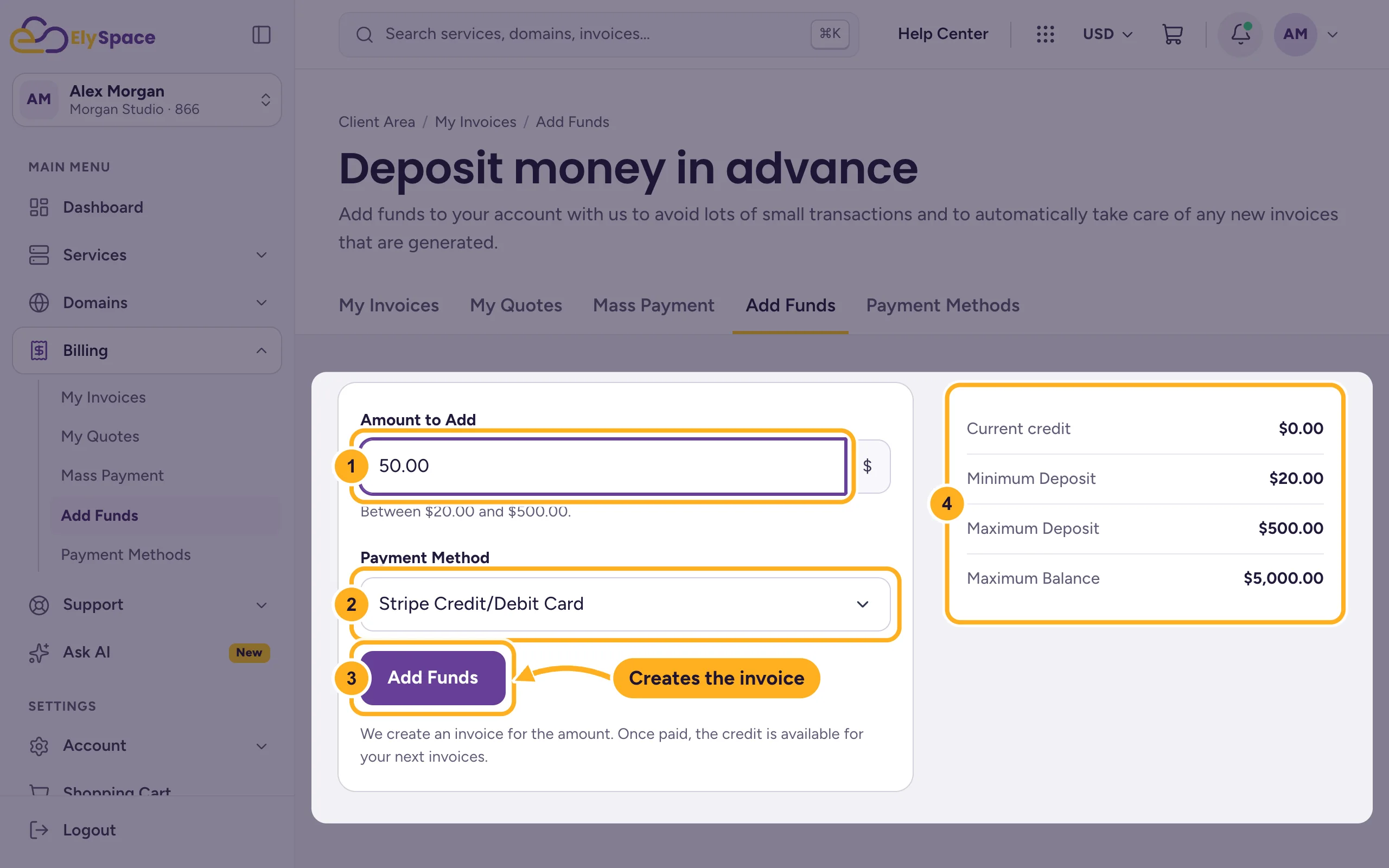
Log in to the client area and go to Billing > Add Funds. The dashboard also has an Add funds link under Account balance.
Fill in the form:
- Amount to Add: type the amount. The hint below the field shows the allowed range.
- Payment Method: how you want to pay.
- Click Add Funds. This creates an invoice for the amount.
- The box on the right shows your Current credit and the Minimum Deposit, Maximum Deposit and Maximum Balance.
Pay the new invoice like any other. See Pay an invoice. Once it's paid, the amount appears as your account balance.
How the credit is used
When a new invoice is created, your credit pays it, fully or in part. You see the balance on the dashboard under Account balance and on the Add Funds page under Current credit.
Common problems
The amount isn't accepted
It's outside the allowed range. Check the hint below Amount to Add and the limits in the box on the right, and that your credit doesn't go above the Maximum Balance.
Your credit didn't go up
The credit is added when the deposit invoice is paid. Check under Billing > My Invoices that it shows Paid.
Related articles
Still stuck? Open a support ticket and we'll help.
